Connect to your VPS
Log in to your server over SSH or Remote Desktop, manage SSH keys and reset the password from the dashboard.
Every VPS shows how to reach it on its Overview tab. Linux servers are reached over SSH, Windows servers over Remote Desktop (RDP). Open your project, choose VPS and select the server.
Find the connection details
The Connection card on the Overview tab shows:
- SSH Host: the address to connect to.
- SSH Port: only on servers with a shared IPv4 address. These servers get their own SSH port instead of 22.
- SSH Command: the full command, ready to copy.
ssh [email protected] -p 22200Log in with the user in the command and the root password you set when you created the VPS. On servers with a dedicated IPv4 address the command has no -p, because SSH listens on the normal port 22. In some locations Ubuntu images log in as ubuntu instead of root; use sudo for admin commands there.
The SSH tab
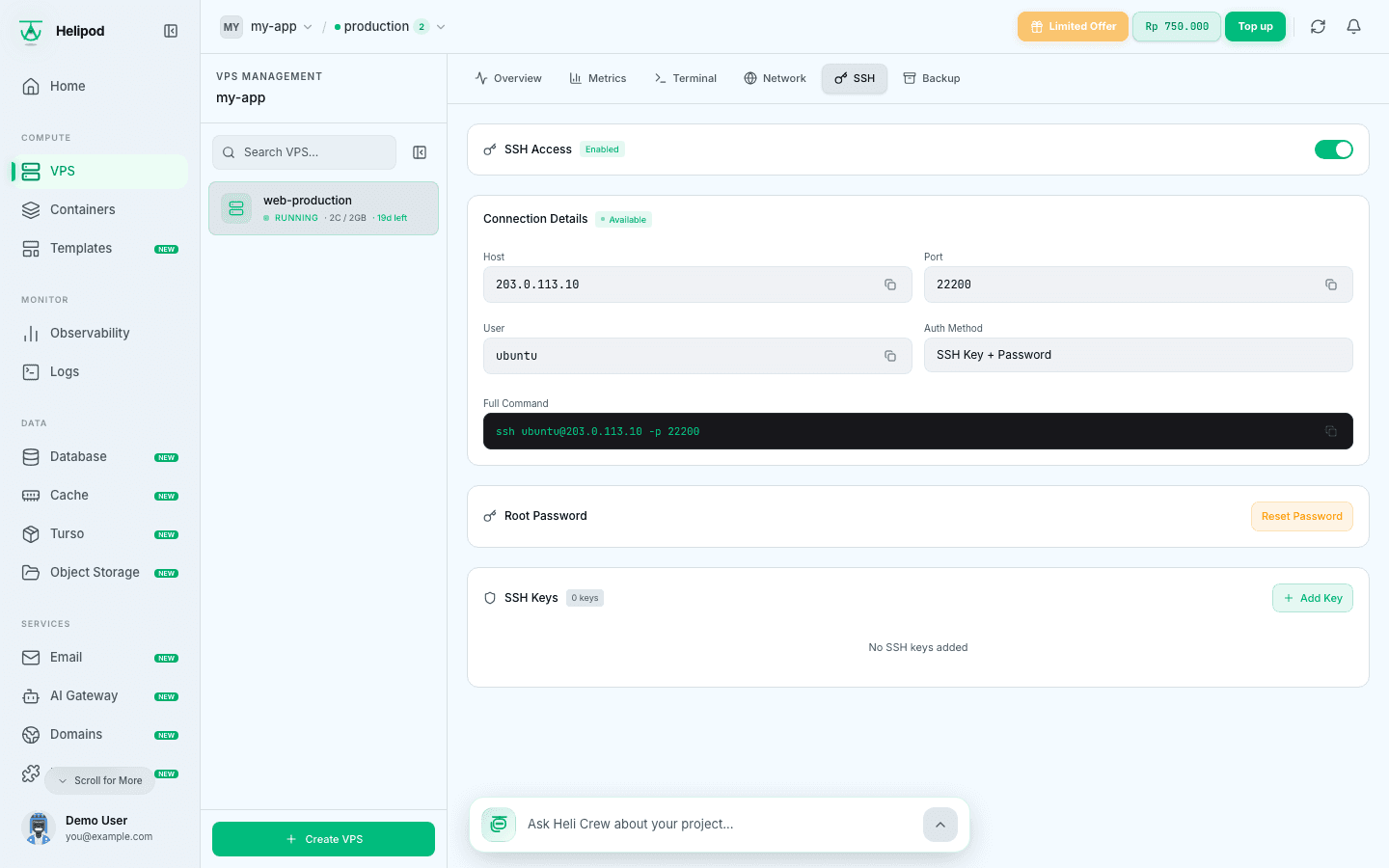
- Connection Details: host, port, user and the Full Command, each with a copy button.
- Root Password: click Reset Password, type a new password or click Generate Password, then confirm. The old password stops working immediately. The same rules apply as at purchase: 12 to 30 characters with upper and lower case letters, a number and one of
! @ # $ % ^ *. - SSH Keys (shared IPv4 servers): click Add Key, paste a public key and save. Delete a key with its delete button. On other servers, add keys yourself as shown below.
- SSH Access (shared IPv4 servers): a switch that turns SSH off completely. While it is off you cannot connect over SSH until you turn it back on.
Paste only the public key, the line from the .pub file. Never paste your private key anywhere.
Log in with an SSH key
Create a key on your computer once:
ssh-keygen -t ed25519 -C "you@laptop"
cat ~/.ssh/id_ed25519.pub
Then either paste the printed line into Add Key on the SSH tab, or copy it to the server with your password:
ssh-copy-id -p 22200 [email protected]To avoid typing the port every time, add the server to ~/.ssh/config:
Host myvps
    HostName 203.0.113.10
    Port 22200
    User root
    IdentityFile ~/.ssh/id_ed25519
Now ssh myvps is enough.
The Terminal tab
Where available, the Terminal tab opens the server in your browser, without an SSH client:
- On servers with a shared IPv4 address it is a web terminal. Click Connect.
- In some other locations it is the server Console, like a monitor plugged into the VPS. Click Connect and log in with the VPS username and password. Use the paste button to type text into the console, which also works at the login prompt.
The VPS must be running. The console is also the way back in if a firewall rule or SSH setting locks you out.
First steps after logging in
Update the system and create a user for daily work, so you don't work as root all the time:
apt update && apt upgrade -y
adduser deploy
usermod -aG sudo deploy
mkdir -p /home/deploy/.ssh
cp ~/.ssh/authorized_keys /home/deploy/.ssh/
chown -R deploy:deploy /home/deploy/.ssh
If you turn on ufw, allow SSH before you enable it, or you lock yourself out. On a shared IPv4 server, allow the ports inside the server (22 and the internal ports you forward), not the public ones:
ufw allow 22/tcp
ufw allow 80/tcp
ufw allow 443/tcp
ufw enable
Windows: the RDP tab
Windows servers have an RDP tab instead of SSH. It shows the Server Address, Port (3389) and Username (Administrator).
Set a password
Under Reset Password, a new password is generated for the Administrator account. Copy it and confirm the reset.
Connect
- Windows: press
Win + R, typemstscand press Enter, or run the command from Quick Connect, for examplemstsc /v:203.0.113.10:3389. - macOS, iOS and Android: install Microsoft Remote Desktop (Windows App) from the app store and add a PC with the server address.
Log in as Administrator with the password, and accept the certificate warning the first time.