VPS backups
Turn on nightly off-site backups for a Linux VPS, restore single files or the whole server, and take snapshots where available.
Automatic backups copy the whole server every night to encrypted storage outside the machine your VPS runs on. You can restore single files, download a folder, or roll the whole server back. Backups are a paid add-on, billed separately from the VPS, and are available for Linux servers in locations that show a Backup tab.
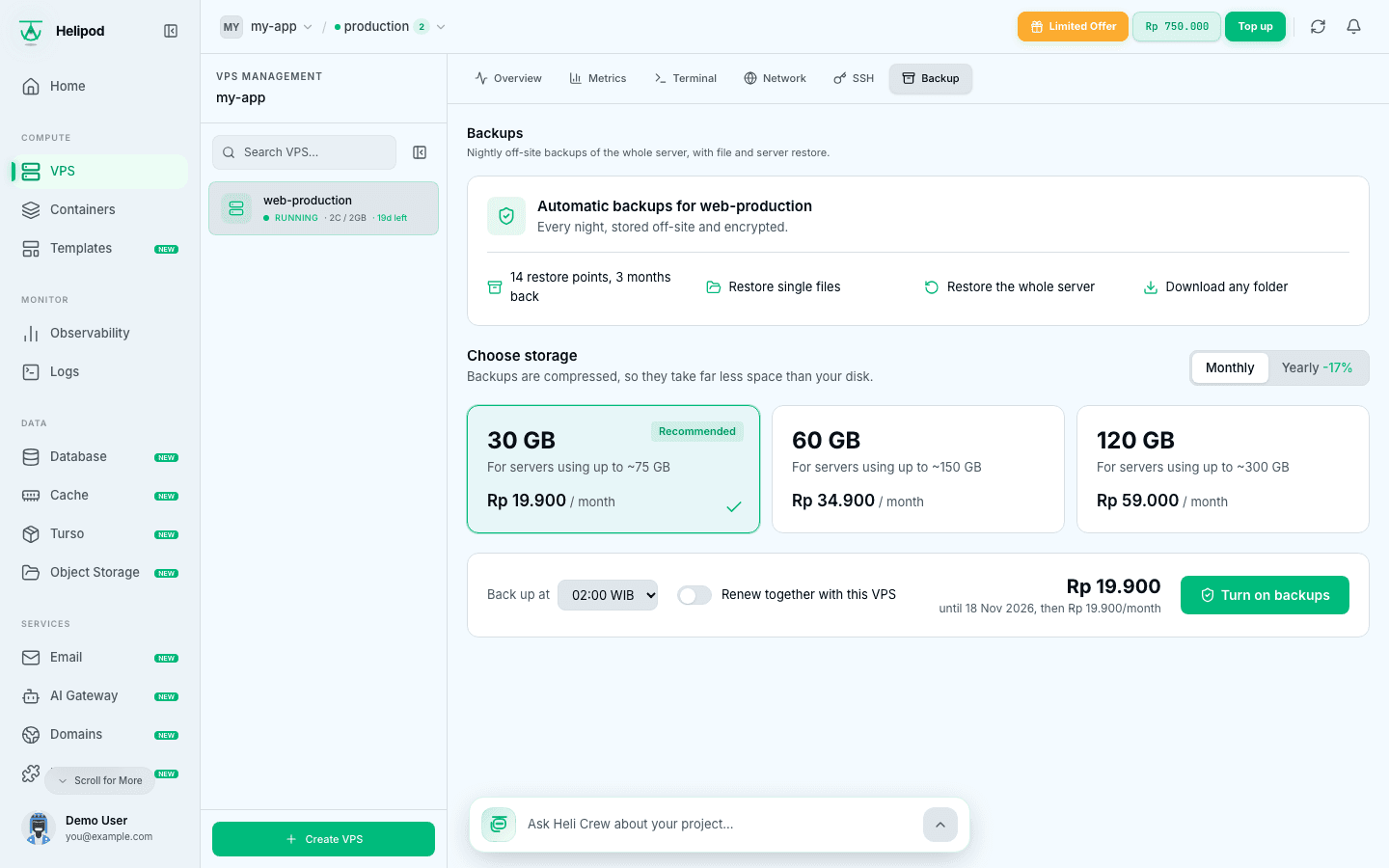
Turn on backups
Open the Backup tab
Select the VPS and open Backup. The VPS must be running; if it is stopped, the page says Start the VPS to turn on backups.
Choose storage
Under Choose storage, pick a size. Each card says roughly how large a server it fits; backups are compressed, so they need far less space than your disk. Switch between Monthly and Yearly billing; yearly shows the saving.
If your VPS order came with a backup bonus, a banner offers it. Click Use bonus to turn backups on for free for the bonus months. Auto-renew stays off after that.
Choose the time
Set Back up at to the hour (WIB) the nightly backup should run. With monthly billing you can also turn on Renew together with this VPS, so the first period is shortened to end on the VPS's renewal date and you pay only for those days.
Pay
Click Turn on backups, check the summary and click Pay (or Turn on for free with a bonus). The amount is taken from your wallet. If the balance is too low, the dialog offers Top up wallet instead.
The first full backup runs that night. A large server can take a few hours; your sites keep running. After that only changes are uploaded.
We email you when storage reaches 80%. When it is full, the oldest restore points are removed first; the newest daily backups are always kept. If even those do not fit, new backups pause until you move to a bigger plan.
Status and settings
The status card shows the plan and its storage, when it renews or ends, Last backup, Next backup, Backup time and how much Backup storage is used.
- Back up now: starts a backup right away. Only changes since the last one are uploaded, usually a few minutes. There is a daily limit; when it is used up, the nightly backup still runs.
- Change plan: a bigger plan applies now and you pay only the difference for the days left. A smaller plan applies at the next renewal and is refused if your backups would not fit.
- Auto-renew from wallet: renews the plan at the end of each period.
- Cancel backup plan: backups continue until the end of the paid period. There is no refund for the current period. After that no new backups are made, and existing backups are deleted a few days later. You can turn auto-renew back on before the end date to keep the plan.
While a backup or restore runs, Start, Stop, Restart, Reinstall and Upgrade are paused for this VPS, and so are other backup actions. The page updates by itself when it finishes.
Restore points
Restore points appear after the first backup finishes, labelled daily, weekly, monthly or manual.
Restore or download files
Click Browse files on a restore point, open folders and tick the files or folders you need. Then choose where they go:
- To a separate folder: files go to
/root/restore-<date>/so you can compare first. This is the safe choice. - To the original place: overwrites the current files. Changes made after that backup are lost.
To restore, the VPS must be running. You can also download the selection as a .tar.gz archive. Large folders take a few minutes to prepare; the link works for 24 hours. Downloads work even when the VPS is stopped.
Restore the entire server
Click Restore server on a restore point, read the warning and type the VPS name to confirm.
- Everything changed after the time of that backup is lost. A backup of the current state is taken first when possible.
- The VPS is offline for a few minutes (usually 1 to 10, depending on the location) and restarts at the end. The IP address stays the same.
- On shared IPv4 servers, if the VPS does not start properly after the restore, it is automatically put back the way it was. In other locations the VPS is reinstalled with the same system and then restored.
History
History lists every backup and restore with its result. A failed nightly backup is retried at the next scheduled time.
Snapshots
In some locations the VPS has a Snapshot tab. A snapshot is a copy of the disk at one moment, kept with the server, not off-site. Snapshots are free; the number you can keep depends on the plan.
- Create Snapshot: give it an optional name, for example
before-upgrade. It takes a few minutes and you can keep using the VPS. - Rollback: returns the server to the snapshot.
- Delete: removes a snapshot you no longer need. This cannot be undone.
A rollback forcibly shuts down the VPS, and everything written after the snapshot is lost. The VPS starts again when the rollback completes.