Support
Open a support ticket, chat with Helipod on WhatsApp, and manage your notifications.
When something does not work or you have a question about a payment, you can open a ticket in the dashboard or chat with the Helipod team on WhatsApp. This guide also shows where your notifications appear and how to choose which emails you get.
Open a ticket
Open Tickets
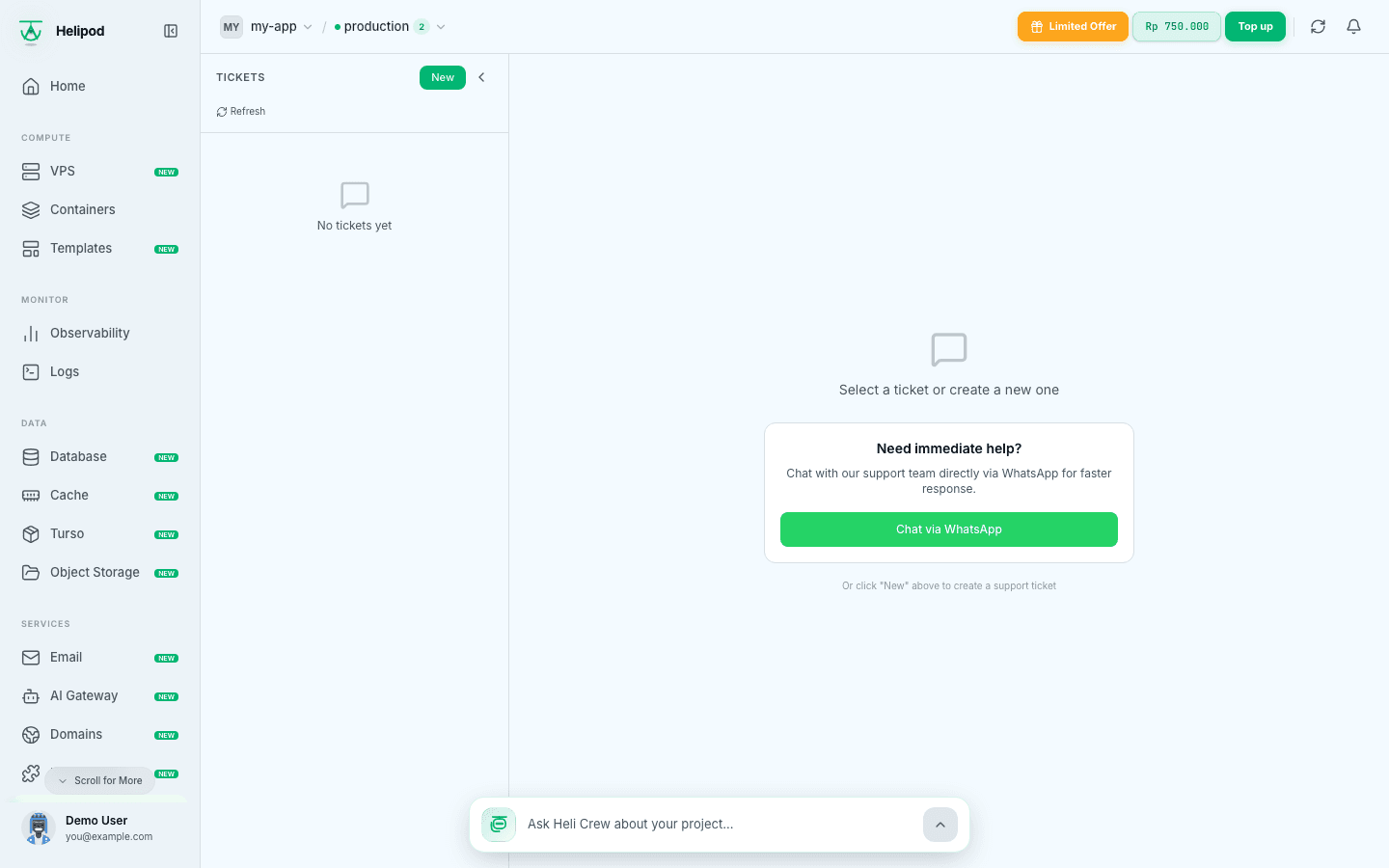
In your project, click Tickets in the sidebar. Your tickets are listed on the left with their status (open, pending or closed).
Start a new ticket
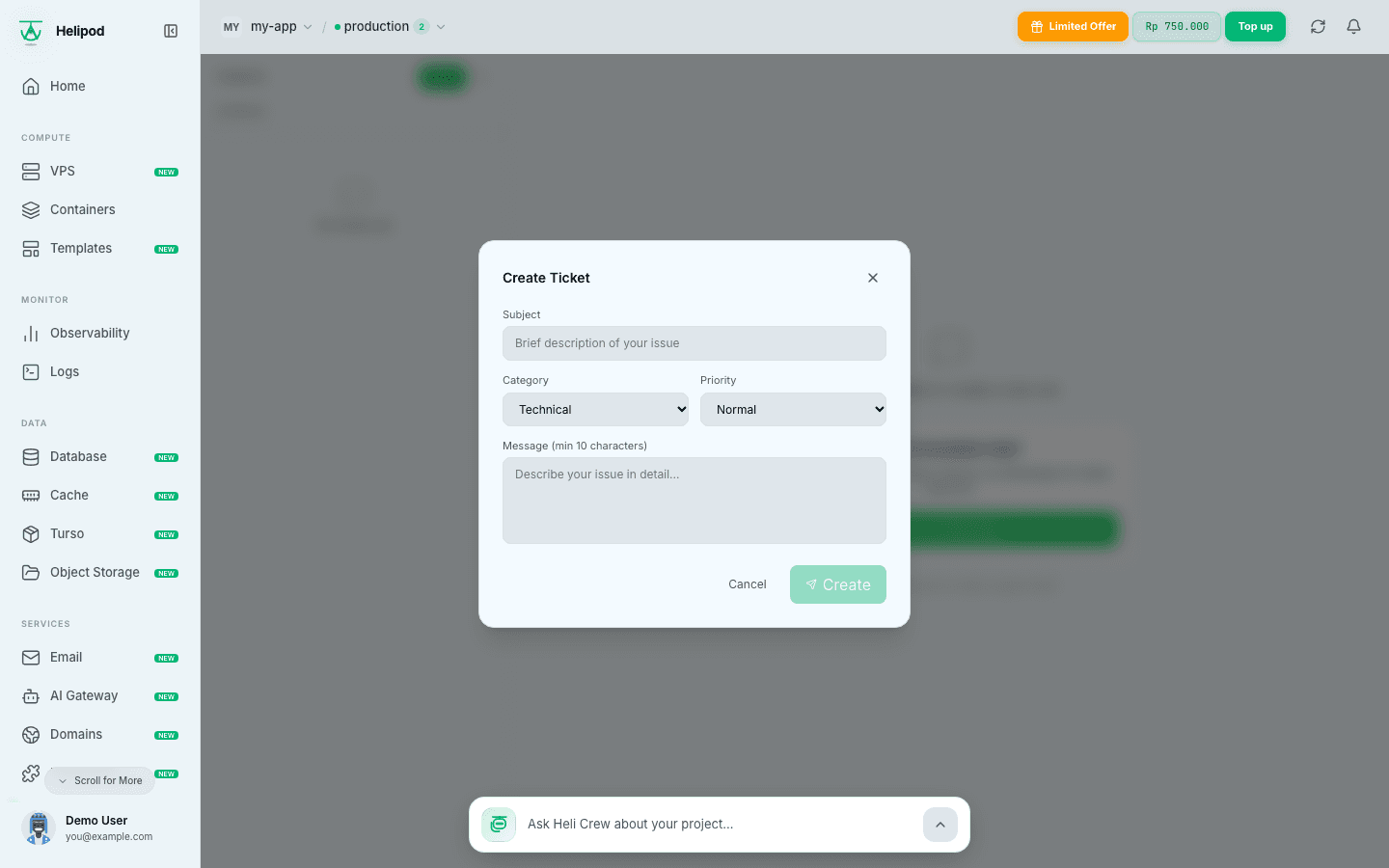
Click New. The Create Ticket window opens.
Describe the problem
- Subject: a short description of the issue.
- Category: Technical, Billing, Feature Request or Other.
- Priority: Low, Normal, High or Urgent.
- Message: the details, at least 10 characters. Include the service, VPS or domain name, what you expected and what happened, and any error message.
Send it
Click Create. The ticket appears in your list.
Follow up on a ticket
Click a ticket to open its conversation. Our replies appear in the thread. Type in Type a reply... and click Send to answer. When your problem is solved, click Close ticket. A closed ticket can no longer get replies, so open a new one if the problem comes back.
Some places in the dashboard link straight to Tickets, for example when you cannot find a template in the deploy window. Tickets can also be read and created with the Account API.
Chat on WhatsApp
For urgent questions, the Tickets page shows a Need immediate help? box. Click Chat via WhatsApp to open a chat with the Helipod support team with a message already filled in. Mention your project name so we can find it quickly.
Notifications
Helipod tells you about deploys, billing and other events.
- In the dashboard: click the bell in the top bar (on a computer) to open Notifications. A number on the bell shows how many are unread. Click a notification to read all of it; this also marks it as read. Click Mark read to mark all of them as read.
- By email: open Account Settings from your profile menu and go to Notifications. Under Email Notifications, turn each type on or off: Deployment successful, Deployment failed, Billing events (invoices, plan changes, low balance), Plan expiry warning (7 days and 1 day before a plan ends) and Security alerts (a new sign-in from an unrecognised device). Changes save instantly.
Keep Billing events on. A low balance warning gives you time to top up before your containers are suspended.