Ports and domains
Open ports and host a website with your own domain on a VPS, with a shared or a dedicated IPv4 address.
How you open a port depends on the kind of address your VPS has. The plan card at purchase says Shared IPv4 or Dedicated IPv4, and a shared IPv4 VPS has a Network tab.
- Shared IPv4: the public address belongs to the host machine. You forward public ports to your VPS on the Network tab, and route domains to it over HTTP and HTTPS.
- Dedicated IPv4: the address is the VPS's own. You open ports in the operating system and, where your location has one, on the Firewall tab. Skip to Dedicated IPv4.
Shared IPv4: the Network tab
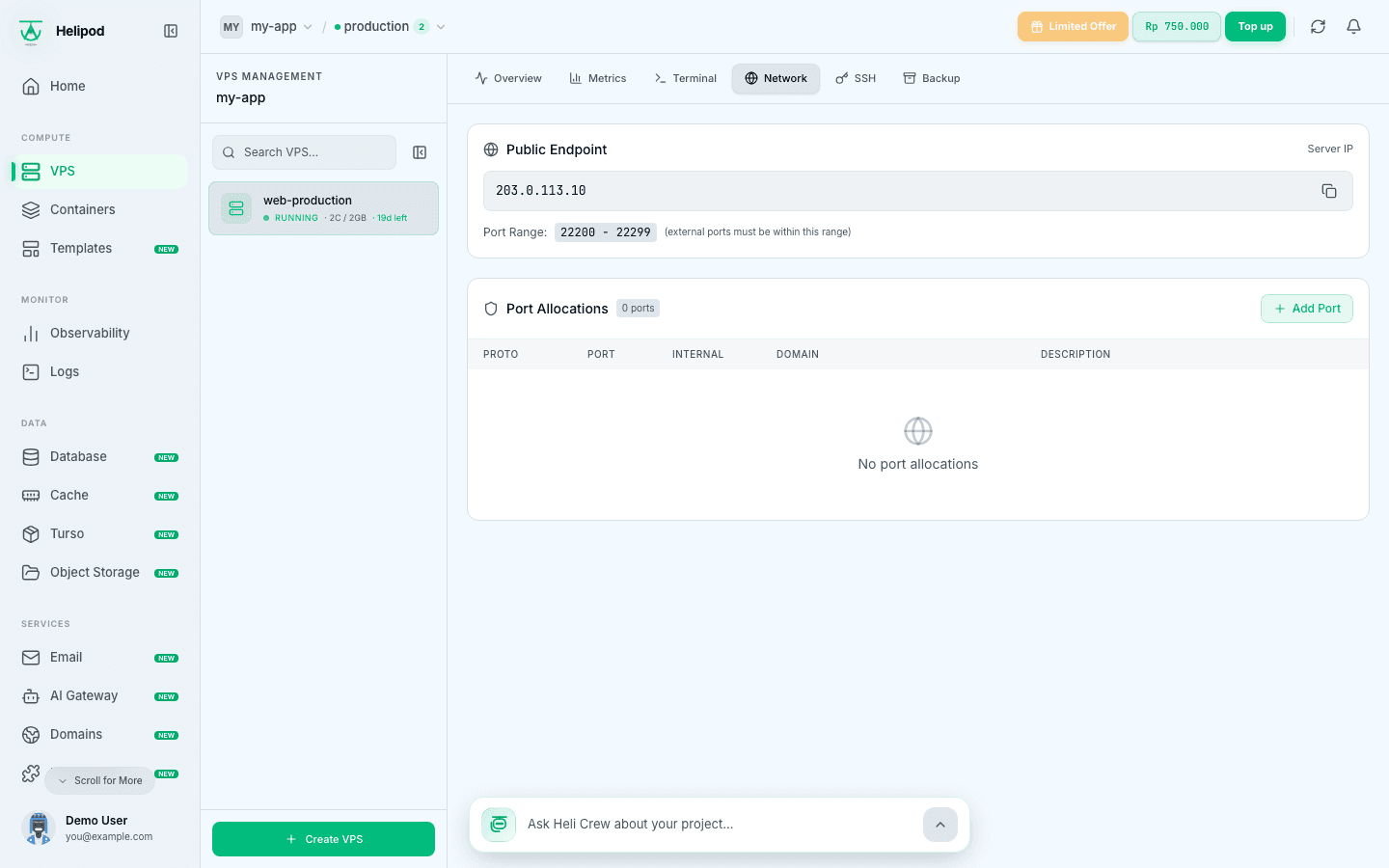
Public Endpoint shows the server IP that everyone connects to, and your Port Range: the public ports this VPS may use for TCP and UDP. Port Allocations lists what is open now.
Add a port
Click Add Port and fill in the new row:
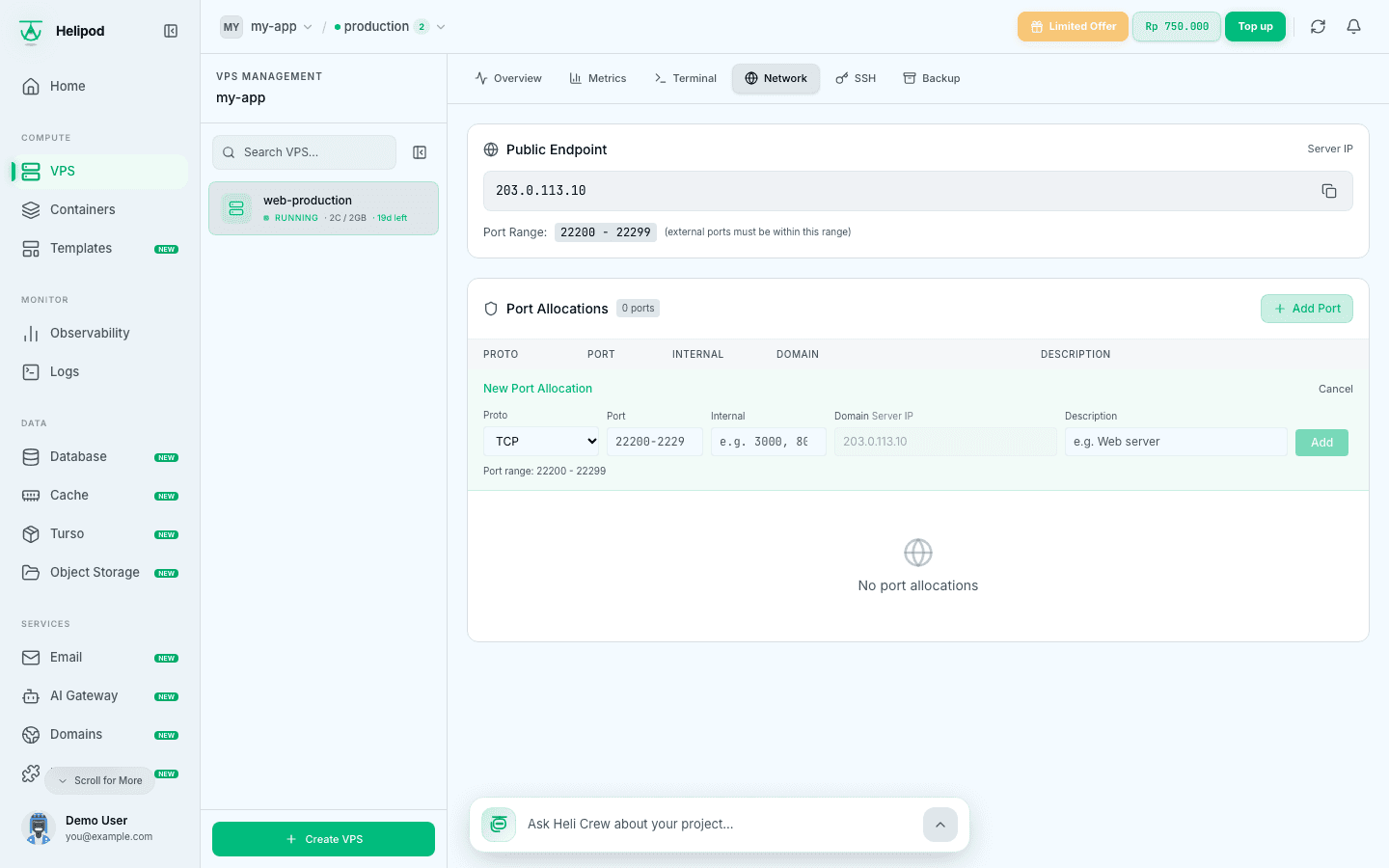
- Proto: TCP, UDP, TCP + UDP, HTTP or HTTPS.
- Port: the public port. For TCP and UDP it must be inside your port range. For HTTP it is fixed to 80, for HTTPS to 443.
- Internal: the port your program listens on inside the VPS, for example
3000or8080. - Domain: for HTTP and HTTPS only, the domain to route, for example
example.com. - Description: a note for yourself.
Save
Click Add. The row appears in Port Allocations with a copy button for the public endpoint. To close a port, delete its row.
The VPS must be running to add or remove a port. Ports cost nothing.
Example: a game server or database over TCP
A Minecraft server listens on 25565 inside the VPS. Add TCP, Port 20145 (any free port in your range), Internal 25565. Players connect to 203.0.113.10:20145.
The same works for a database: TCP, a port from your range, Internal 5432 for PostgreSQL. Protect it with a strong password, and only open it if you really need access from outside.
Host a website with your domain
HTTP and HTTPS routes are matched by domain name, so many servers share ports 80 and 443 of the same address. HTTPS is passed through to your VPS unchanged: your VPS holds the certificate.
Point the domain at the VPS
At your DNS provider, create an A record for the domain (for example example.com and www.example.com) with the server IP from Public Endpoint. If the domain is on Helipod, see Buy a domain.
Add the HTTP route
Click Add Port, choose HTTP, set Internal to 80 and enter the domain. Each route takes one host name, so add another HTTP route for www.example.com if you use it. Requests for /.well-known/acme-challenge/ always reach port 80 inside your VPS, so a web server there can get a Let's Encrypt certificate.
Get a certificate
Run a web server on ports 80 and 443 inside the VPS and let it obtain the certificate. Two common setups are below.
Add the HTTPS route
Once your server answers HTTPS, add a route with HTTPS, Internal 443 and the same domain (and one for www if you added it). If nothing answers HTTPS on the internal port yet, the route is refused, so do this after the certificate is in place.
Caddy gets and renews the certificate on its own. To serve an app on port 3000:
example.com, www.example.com {
    reverse_proxy localhost:3000
}apt install -y caddy
systemctl reload caddyA domain can be routed to one VPS only. If another server already uses it, or this VPS already has a route of the same protocol for it, the route is refused.
Dedicated IPv4
Your VPS has its own address, so a program listening on a port is reachable as soon as nothing blocks it.
- In the operating system: allow the port in the server's own firewall if you use one, for example
ufw allow 443/tcp. - On the Firewall tab (in locations that have one): click Add Rule, pick a Quick Presets entry (SSH, HTTP, HTTPS, RDP, Ping, MySQL, PostgreSQL, Redis) or set Protocol, Port Range (
80,80,443or8000-8080), Action and Source (Anywhere or a specific IP or range). The rule shows Applying, then Active.
New Linux servers open only SSH (22), HTTP (80) and ping by default. Add an HTTPS rule before your site can be reached on 443.
For a website, point the domain's A record at the VPS address and run Caddy or nginx with certbot as above. No routes are needed.