Custom domains
Make a service public with a free *.helipod.app address or your own domain, with automatic HTTPS.
A new service is private: only other services in the same environment can reach it. To open it to the internet, give one of its ports a domain. You can use a free *.helipod.app address, a domain you own at any registrar, or a domain you bought on Helipod. HTTPS certificates are issued and renewed automatically.
Get a free helipod.app address
Open the service
On the Containers page, click the service. On the Deployments tab, click Make public accessible. (The button shows while the service has only a private address.)
Create the magic domain
Keep Magic Domain selected. In App port, enter the port your app listens on, for example 3000 for a Node.js app or 80 for nginx. Click Create domain.
Helipod gives the service a *.helipod.app address and starts provisioning it. Open it from Settings › Networking & Domains once it is ready.
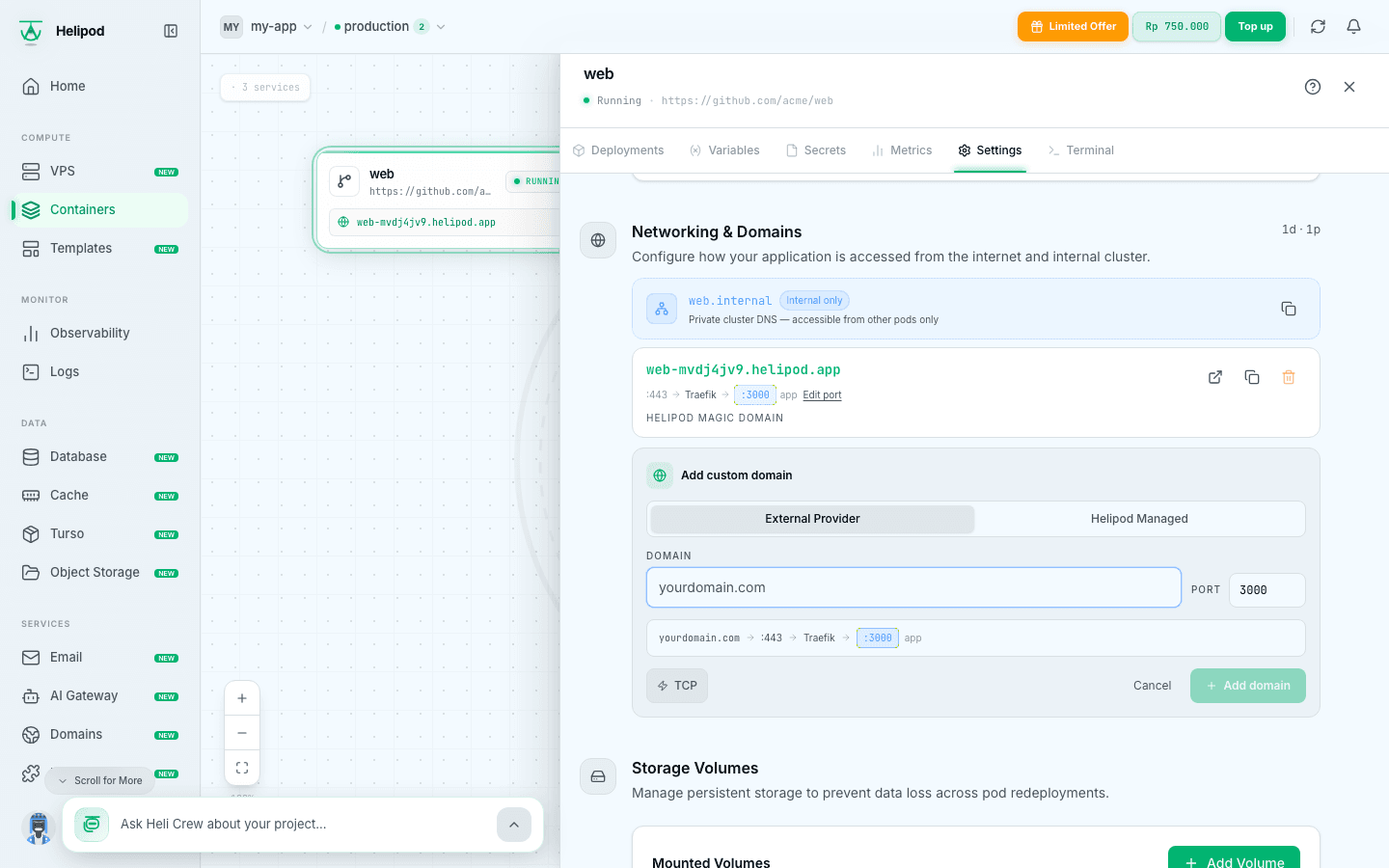
You can also add it from Settings › Networking & Domains: click Magic domain, set Port and click Create. A service can have one magic domain per port, up to five.
Use the port your app listens on
If the domain answers with a gateway error, the App port does not match the port in your app. Change it on the domain card (the new port applies after the next deploy, so click Redeploy now).
Use your own domain
Add the domain
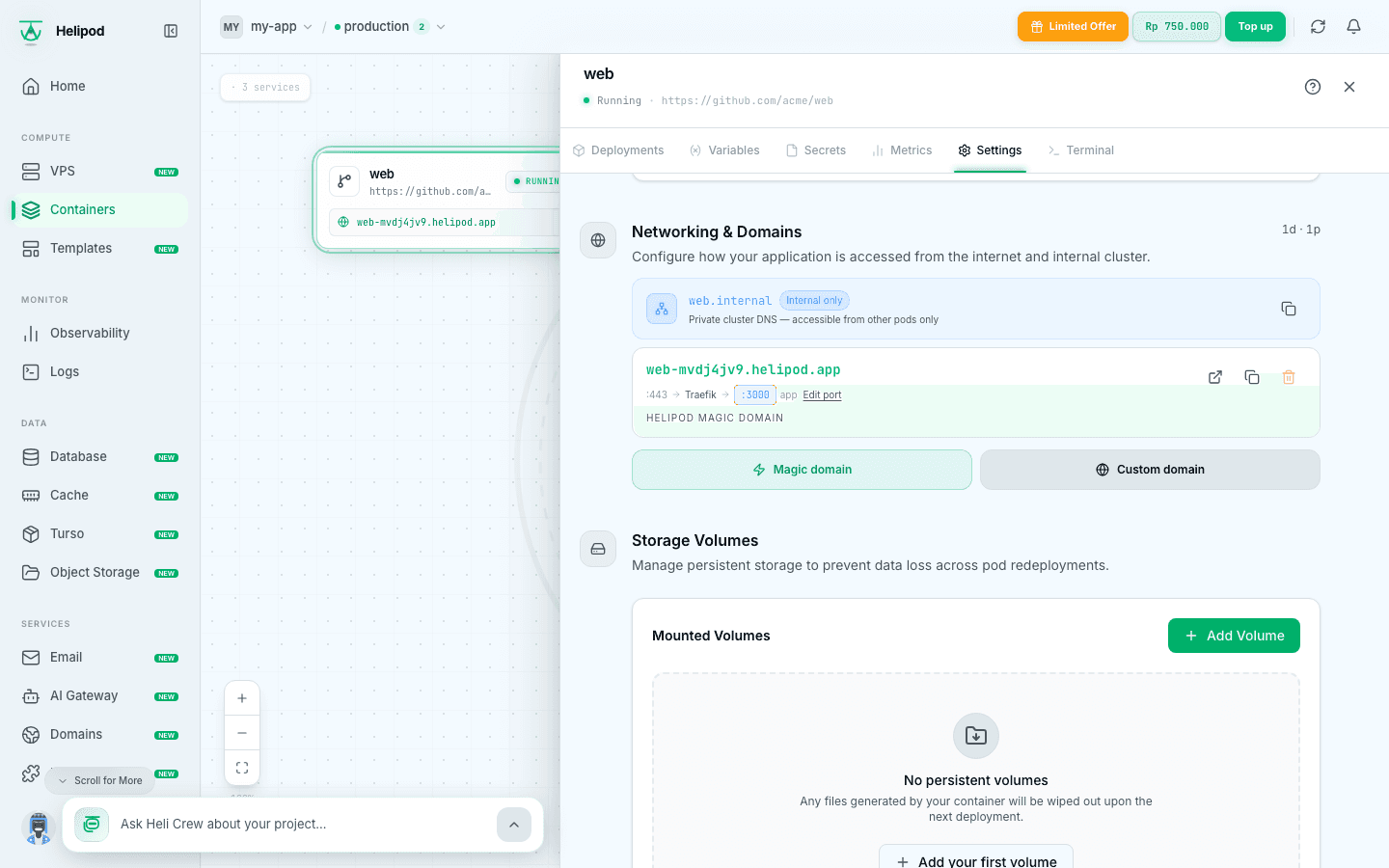
Open the service, go to Settings › Networking & Domains and click Custom domain. Keep the External Provider tab, type the domain in Domain (for example www.myshop.id or myshop.id), set Port and click Add domain.
Create the DNS record at your DNS provider
Open the domain card's DNS records. A subdomain (www.myshop.id, api.myshop.id) uses a CNAME record. A root domain (myshop.id) uses an A record.
| Domain | Type | Host | Value |
|---|---|---|---|
www.myshop.id | CNAME | www | cname.helipod.app |
api.myshop.id | CNAME | api | cname.helipod.app |
myshop.id | A | @ | 194.163.175.194 |
At a typical registrar the records look like this:
www   CNAME   cname.helipod.app.
@     A       194.163.175.194
In Cloudflare, add the same records and set Proxy status to DNS only (grey cloud):
Type    Name   Content              Proxy status   TTL
CNAME   www    cname.helipod.app    DNS only       Auto
A       @      194.163.175.194      DNS only       Auto
Cloudflare: grey cloud only
With the orange cloud (Proxied), the certificate check can't reach Helipod and SSL fails. Set the record to DNS only first. Remove any older A, AAAA or CNAME record for the same name.
Check the DNS
Back on the domain card, click Check DNS propagation. It turns into DNS configured correctly when the record is visible. If it says DNS not found, wait a few minutes and check again; DNS changes can take up to a few hours.
HTTPS
Once the record points at Helipod, the certificate is issued automatically and the domain serves HTTPS. There is nothing to upload or renew.
Use a domain bought on Helipod
If you bought the domain on Helipod (Buy a domain), Helipod can create the DNS record for you.
- Go to Settings › Networking & Domains, click Custom domain and open the Helipod Managed tab.
- Type a Subdomain (optional), for example
apiorwww. Leave it empty for the root domain. - Choose the Domain from the list, set the port and click Add domain.
Helipod adds the CNAME (subdomain) or A record (root domain) to the domain's DNS and provisions the certificate. You can also pick My Domains in the Make public accessible window on the Deployments tab.
TCP ports
Some services don't speak HTTP: databases, game servers, MQTT. Turn on the TCP toggle when you add a domain; the form then says the port is exposed as a raw TCP port via SNI. Clients connect with TLS and the domain name (SNI), and Helipod passes the raw connection to your port.
TCP ports must be 1024 or higher. Ports 30000 to 32767 and a few platform ports (such as 3000 to 3010, 5000, 8000, 8080 and 8443) are reserved, so pick another port for TCP.
Internal hostname
Every service also has a private address, shown in Networking & Domains with the label Internal only (it ends in svc.cluster.local). Use it for traffic between services in the same environment, for example an API that calls a worker. It never leaves Helipod's network and needs no domain. Click the copy icon to copy it, or use the HELIPOD_PRIVATE_DOMAIN variable, see Variables and secrets.