Deploy a template
Deploy a ready-made multi-service stack in one go, or publish your own template.
A template is a ready-made stack: one or more services with their images or repositories, ports, variables, volumes and resources already set. Deploying a template creates all of those services in your environment and starts them, with passwords generated for you. You can also turn your own setup into a template and share it.
Deploy a template
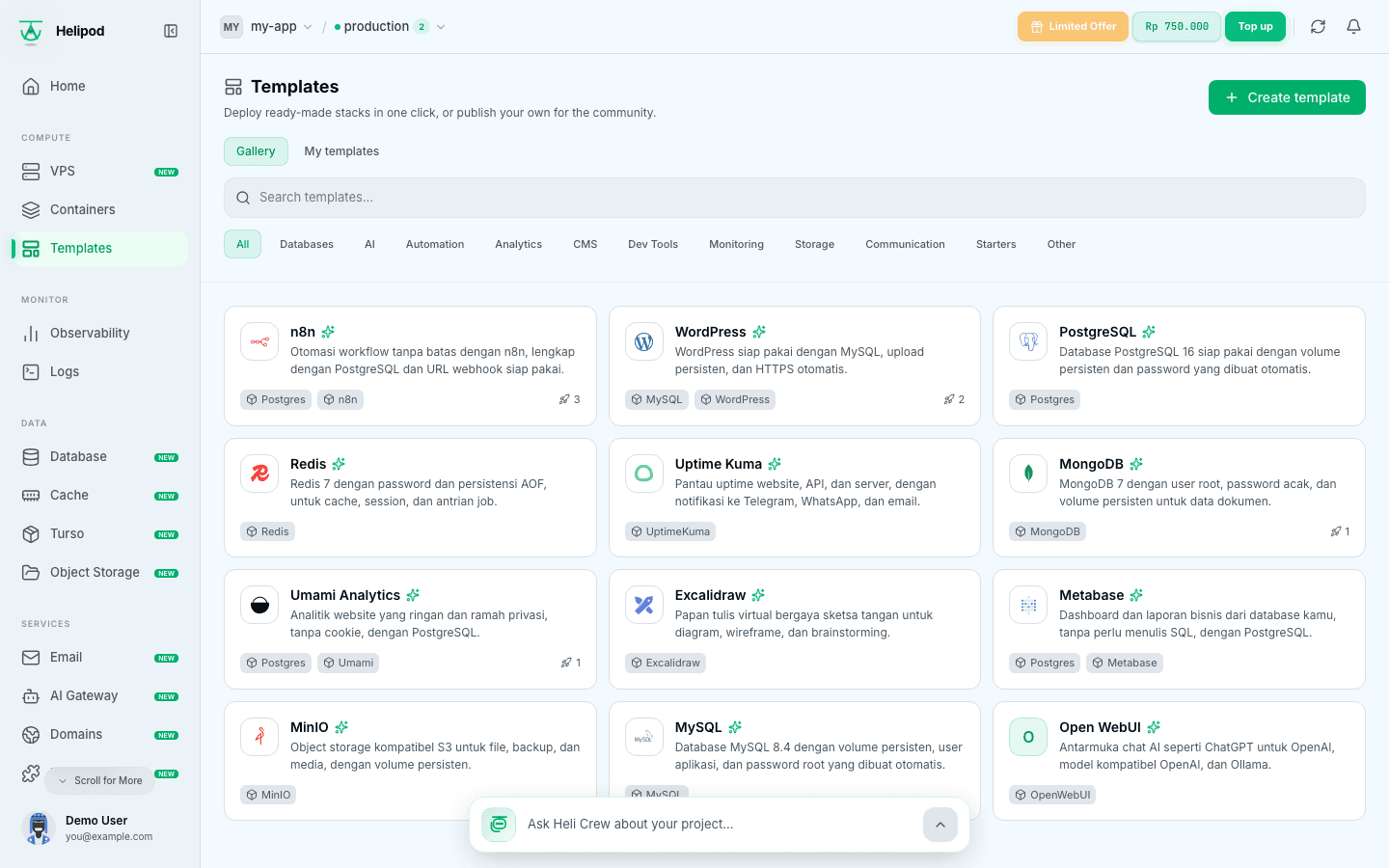
Open the gallery
In your project, click Templates in the sidebar. You can also click Templates at the top of the Add Service window on the Containers page.
The Gallery tab lists every template you can deploy. Templates made by Helipod are marked By Helipod (with a sparkle icon); the others come from the Community. Type in Search templates... or click a category (or All) to narrow the list. Each card shows the services in the stack and how many times it was deployed.
Review the stack
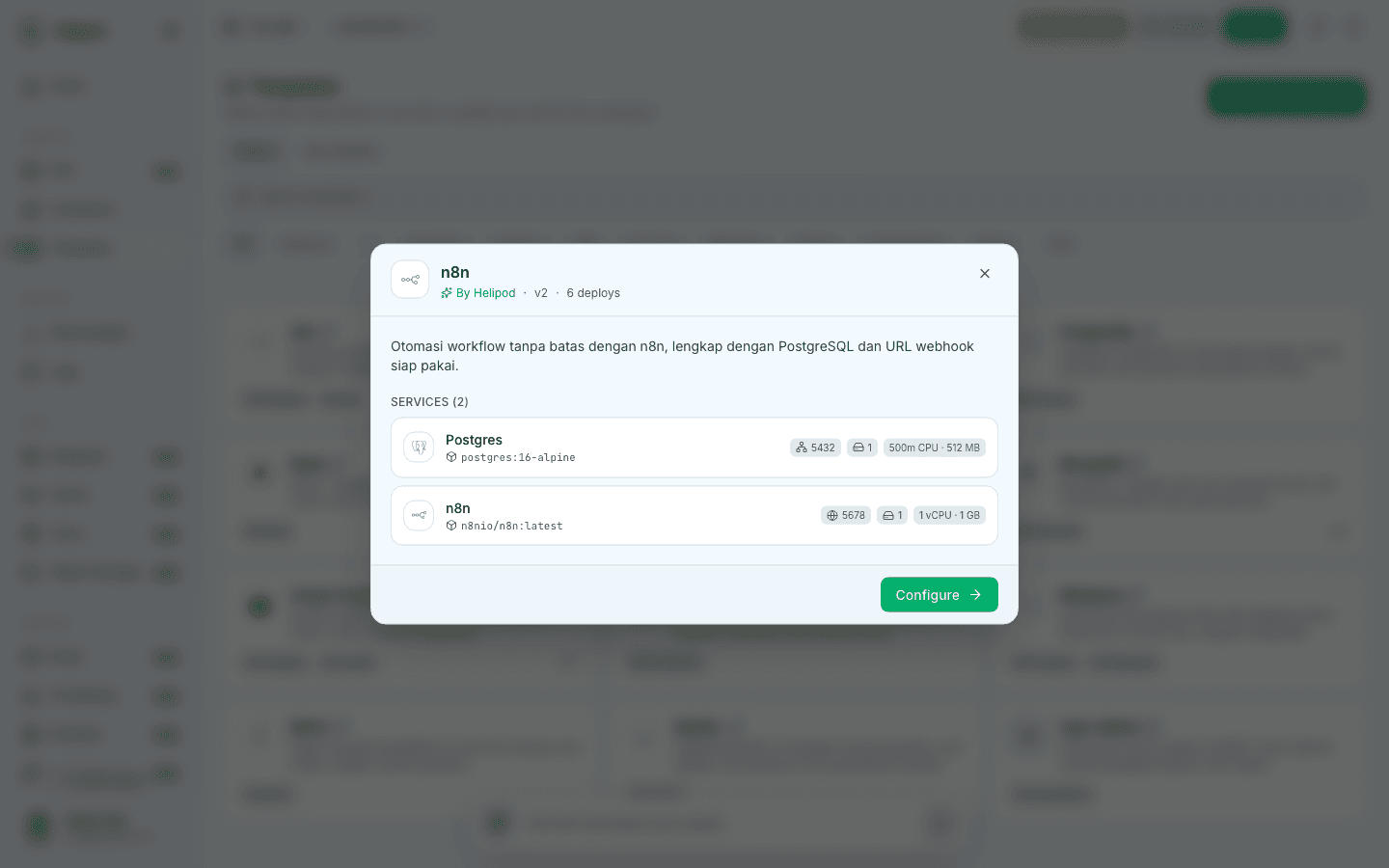
Click a template. The dialog shows its description and, under Services, every service it creates with its source, volumes and CPU and memory. Click Configure.
Choose the environment and fill in the settings
- Environment: where the services are created, for example Production or
staging. - Settings: the questions the template asks, such as an admin email or a domain. Fields marked
*are required. Secret fields are masked; click the eye to check what you typed.
What happens next sums up the services, the total CPU and memory, and the volumes. Each service is billed daily like any other service.
Click Deploy.
Open the canvas
The dialog lists the Services created, each marked Deploying. A service that could not start is marked Not deployed yet with the reason. Click Open canvas to see the new services on the Containers page and follow their deploys.
Passwords are generated for you
Passwords and keys that a template needs are generated during the deploy and saved as service variables. Open a service's Variables tab to find them. Secret values are hidden in the dashboard.
After the deploy, each service is an ordinary service: change its variables, domains, volumes and scaling as you would for any other, see Variables and secrets and Custom domains.
Publish your own template
Create a template
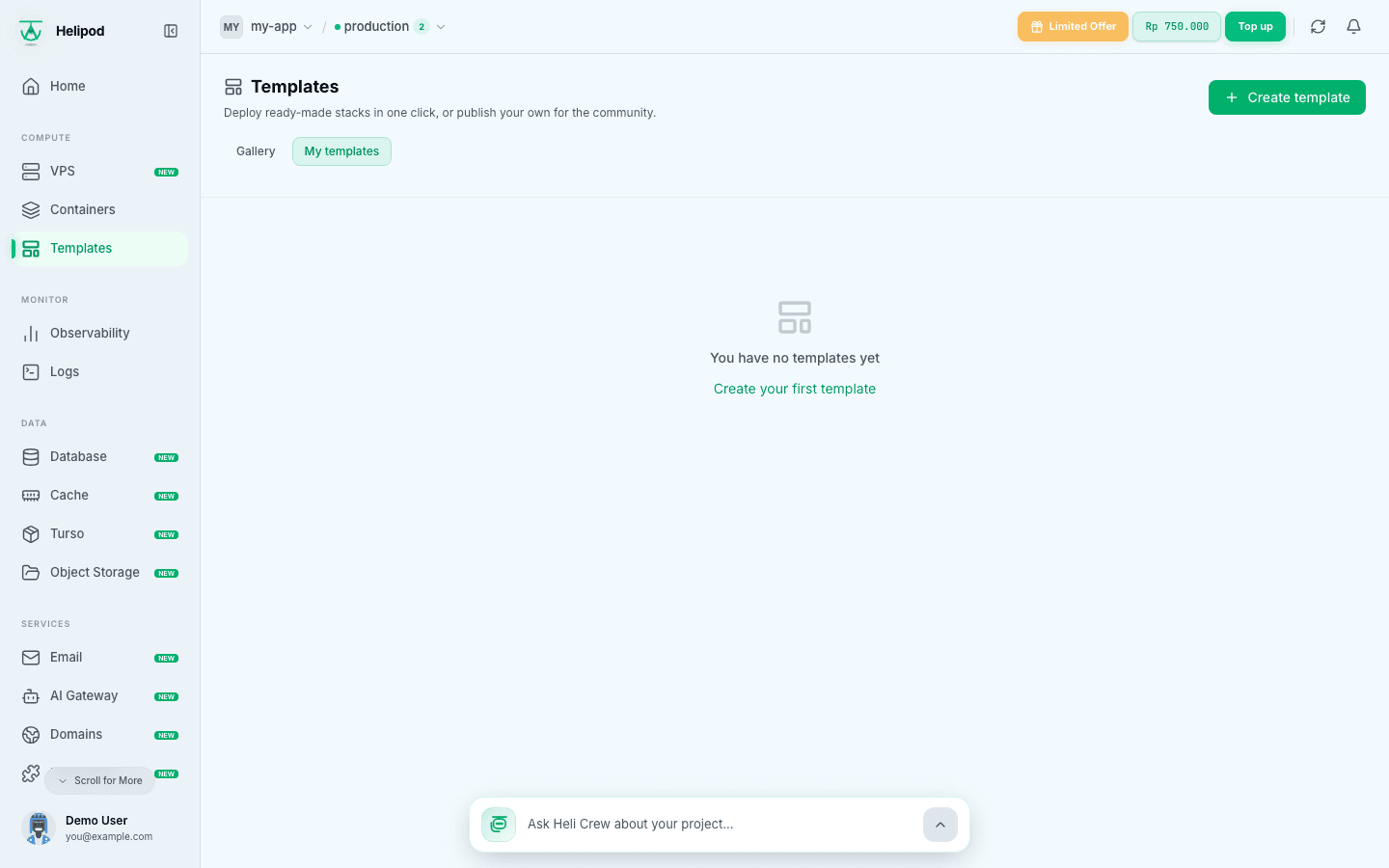
On the Templates page, click Create template. Your templates are listed under My templates, with their status (Draft, In review, Published, Changes requested or Archived), visibility, version and deploy count, and Deploy and Edit buttons.
Add services
The builder is a canvas like Containers. Click Add service (or Add New at the top right) and pick a source:
- Git repository: a public https repository, built on deploy. Set the branch and an optional root directory.
- Docker image: an image from any public registry, for example
nginx:1.27. - Private registry image: whoever deploys enters their registry username and token. They are never stored in the template.
- Dockerfile: an inline Dockerfile, built on deploy.
Or click Import environment to copy the services of one of your environments. Passwords become generated secrets, links between services become references, and nothing secret is copied.
Click a service to set its Networking (ports: Public HTTPS domain, Private (other services only) or Public TCP (TLS/SNI)), Environment Variables, Resources, Storage Volumes and Deploy settings (start command, health check).
Use references instead of real values
Never put real passwords in a template. Use references, which are filled in on every deploy:
| Reference | Becomes |
|---|---|
${{secret(32)}} | A random 32-character secret |
${{uuid}} | A random UUID |
${{input.ADMIN_EMAIL}} | The answer to the input ADMIN_EMAIL |
${{Api.API_KEY}} | The variable API_KEY of the service named Api |
${{Api.HELIPOD_PRIVATE_DOMAIN}} | The private host of the service Api |
${{HELIPOD_PUBLIC_DOMAIN}} | This service's public domain |
SESSION_SECRET=${{secret(32)}}
ADMIN_EMAIL=${{input.ADMIN_EMAIL}}
API_URL=http://${{Api.HELIPOD_PRIVATE_DOMAIN}}:8080
Add inputs and details
Open Inputs to add the questions shown in the deploy dialog (key, label, help text, default value, required, secret). Open Details to set the short description, category, tags, icon URL and readme. Click Save to store a version.
Publish
Click Publish and choose who can deploy it:
- Private: only you can see and deploy it.
- Unlisted: anyone with the link can deploy it. It is not listed in the marketplace.
- Marketplace: listed for everyone after Helipod reviews it. The button reads Submit to marketplace.
Fix any problems the check lists before publishing.
Every shared template has a public page at https://helipod.io/templates/<slug>. It includes a Deploy on Helipod badge with ready-to-copy Markdown and HTML snippets for a README or website:
[](https://helipod.io/templates/your-template)