Volumes and scaling
Keep files across deploys with volumes, change CPU and memory, add replicas and tune how a service starts.
A container's own disk is wiped on every deploy. Anything your app must keep (uploads, a SQLite file, a search index) needs a volume. In the same Settings tab you can also resize the service, run more than one copy of it, and change how it starts and how Helipod checks that it is healthy.
All three sections are in the service panel: open the service on the Containers page and click Settings. Type in Filter settings... to jump to one.
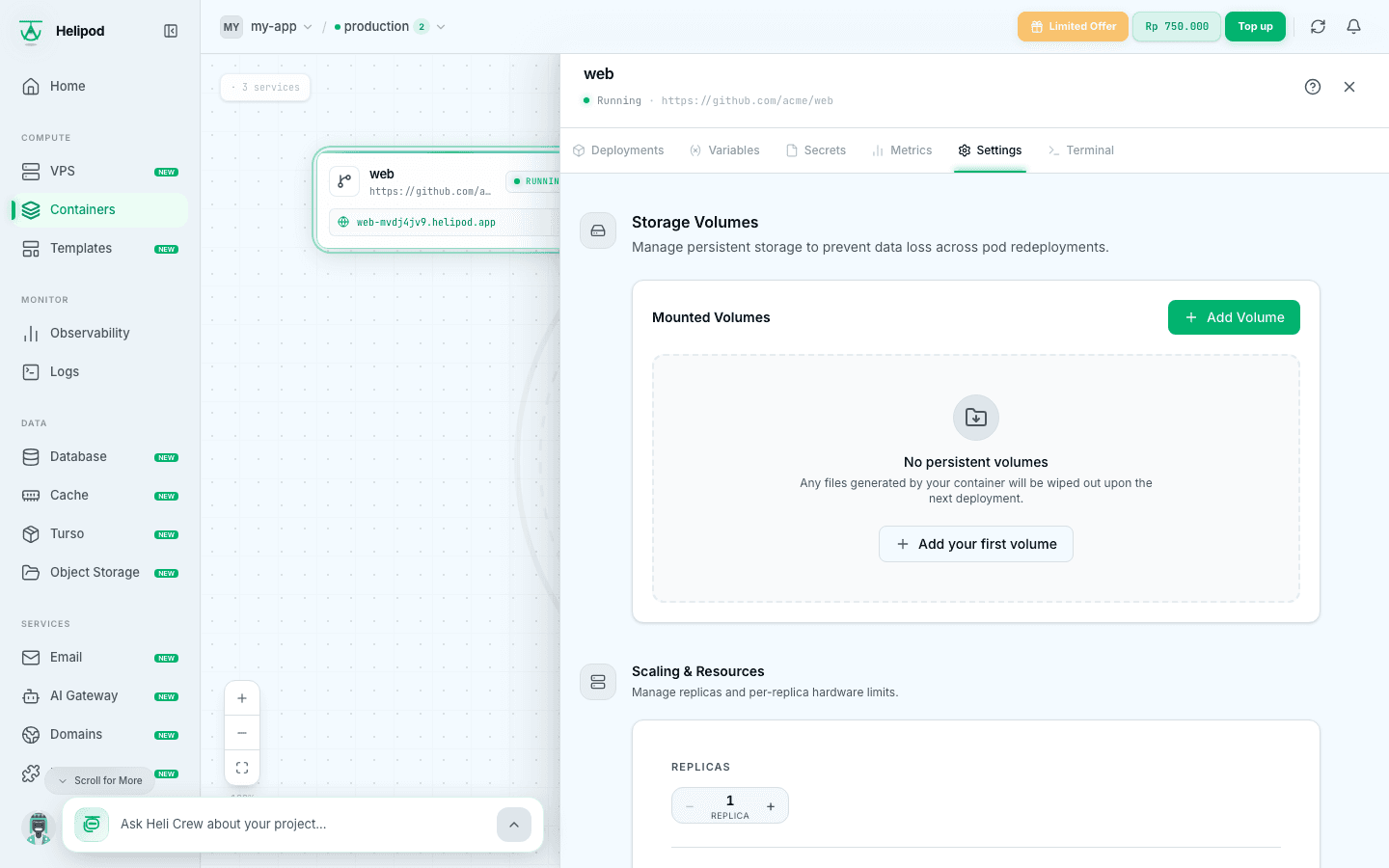
Storage volumes
Add a volume
In Storage Volumes, click Add Volume and fill in:
- Volume Name: a label, for example
uploads. - Max Size (optional): the size in MB, for example
5120for 5 GB. When empty, the volume gets 1024 MB. - Mount Path: the absolute path inside the container where the volume appears, for example
/app/uploads.
Apply
Click Create Volume, then Confirm & Apply. The service redeploys right away with the volume mounted, so expect a short downtime.
Everything your app writes under the mount path survives deploys and restarts. Files outside it are still lost on the next deploy.
Deleting a volume deletes its data
Removing a volume redeploys the service immediately and its files are gone. Copy anything you need out of the volume first.
A service with a volume can't use autoscaling, see below. Keep a database in the managed Database rather than a volume when you can.
Scaling and resources
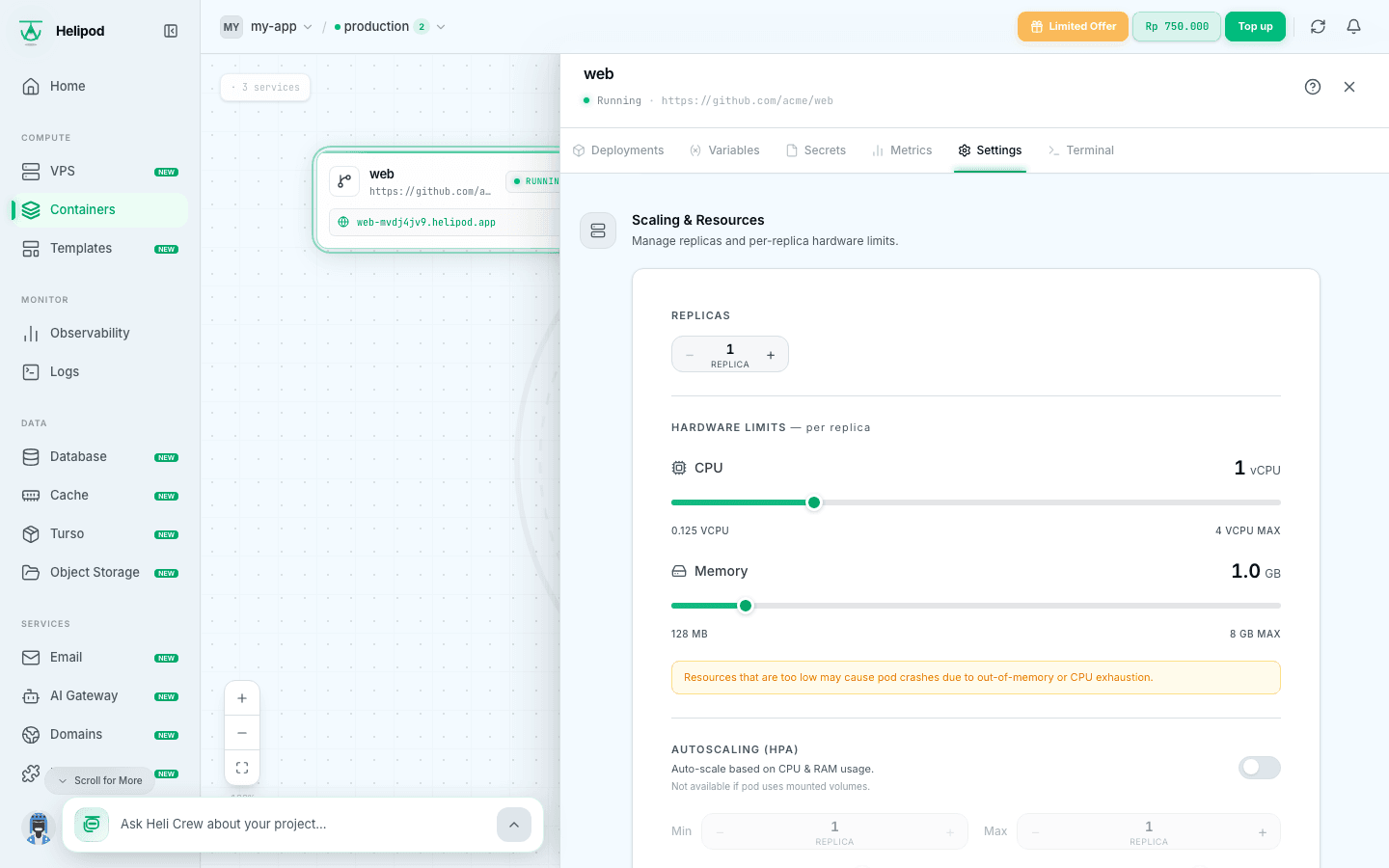
Scaling & Resources shows the current size of the service.
- CPU: 0.125 to 4 vCPU per replica, in steps of 0.125.
- Memory: 128 MB to 8 GB per replica, in steps of 128 MB.
- Replicas: how many copies of the service run side by side. Use the
-and+buttons. Traffic is spread across them, and each replica is billed for its CPU and memory.
Autoscaling (HPA)
Turn on Autoscaling (HPA) to let Helipod add and remove replicas with the load:
- Min and Max: the range of replicas, up to 5.
- CPU and RAM thresholds: when average usage passes them, replicas are added. The defaults are 70% CPU and 80% RAM, and each can be set from 10% to 90%.
While autoscaling is on, the replica count is controlled by the HPA. Autoscaling is not available for a service with mounted volumes; remove the volumes first.
Apply the changes
Changed values are marked Unsaved changes. Click Apply Changes, check the before and after values, and click Confirm & Apply. This starts a new deployment in the background with the new size.
Cost
A service is billed daily for its CPU and memory, times the number of replicas. Bigger sizes and more replicas cost more; the estimate in Add Service shows the daily price of one replica.
Build and run
Build & Run overrides how the service is built and started. Leave a field empty to use what Helipod detects.
| Field | What it does | Example |
|---|---|---|
| Root directory | Git services only: the folder of the app inside the repository, for monorepos. Empty builds the repository root. | apps/api |
| Start command | Replaces the image's default command. | node dist/main.js |
| Health check path | An HTTP path that answers 200 when the app is ready. | /health |
| Timeout (s) | How long Helipod waits for the health check, from 5 to 600 seconds. | 60 |
Click Save. The new settings apply on the next deploy: click Redeploy now in the notice that appears, or deploy later from the Deployments tab.
A simple health check endpoint in Node.js:
app.get("/health", (req, res) => res.status(200).send("ok"));