Manage your VPS
Start, stop and restart a VPS, reinstall or upgrade it, renew it, and understand auto-renew and expiry.
Everything you do day to day happens on the VPS's Overview tab. Open your project, choose VPS and select the server.
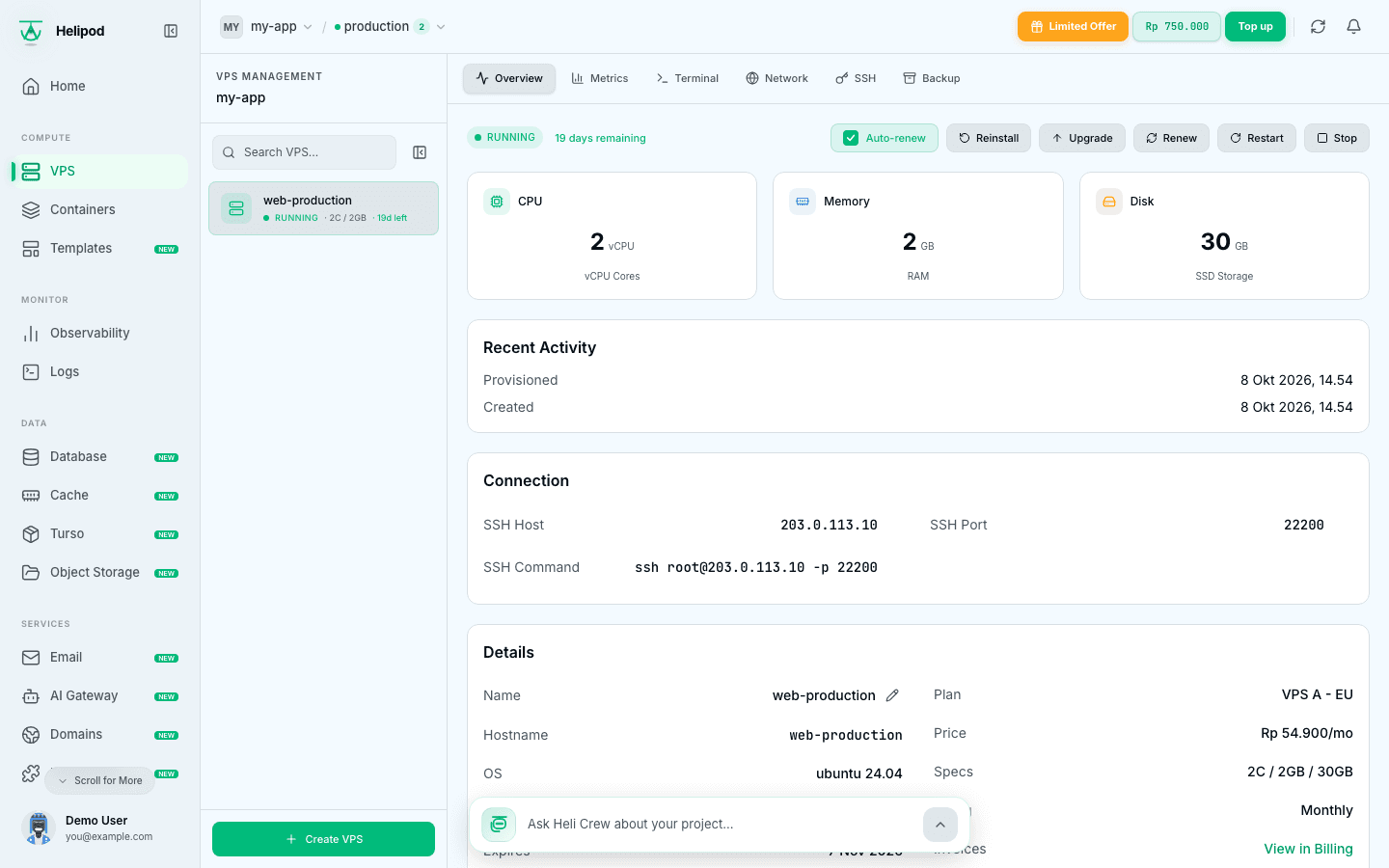
At the top you see the status (for example running or stopped) and how much of the paid period is left, such as 3 months remaining. The buttons next to it depend on the status: a running VPS shows Reinstall, Upgrade, Renew, Restart and Stop; a stopped one shows Start and Upgrade. On a phone they are in the menu behind the three dots.
Power: Start, Stop, Restart
- Stop shuts the server down. Running services stop; your data is kept.
- Start boots it again.
- Restart briefly interrupts running services.
Stop and Restart ask for confirmation first. A stopped VPS is still billed: the paid period keeps running.
Reinstall
Reinstall puts a fresh copy of an operating system on the VPS. It is available while the VPS is running.
Choose the system
Pick an Operating System from the ones your plan offers.
Set a new root password
Type a password or click Generate Password: 12 to 30 characters, upper and lower case letters, a number and one of ! @ # $ % ^ *.
Confirm
Click Continue, read the warning and click Reinstall VPS.
Reinstall erases everything
All data, configuration and files on the VPS are permanently deleted. Copy what you need first, or restore it afterwards from a backup.
Upgrade
Upgrade moves the VPS to a bigger plan (more CPU, RAM or disk). It is offered on shared IPv4 servers and in some other locations.
- Under Available Upgrades, choose a plan. The review shows the current and new specs.
- Upgrade Cost (Prorated) is what you pay now: the difference for the days left in your current period. From the next renewal you pay the new plan's price.
- Click Continue, then Confirm Upgrade and Yes, Upgrade Now. The cost is taken from your wallet.
The VPS is restarted during the upgrade, and the upgrade is irreversible: you can't move back to a smaller plan. The expiry date does not change.
Renew
Renew pays for another period in advance. It is available while the VPS is running.
- Under Select Renewal Period, choose 1 Month, 3 Months, 6 Months or 12 Months. Longer periods can carry a discount.
- The review shows the Monthly Price, the Discount, the Total and the New Expiry Date.
- Click Continue, then Confirm Renewal and Yes, Renew Now.
The total is taken from your wallet and the expiry date moves forward. If the renewal fails, your wallet is refunded automatically.
Auto-renew
The Auto-renew checkbox next to the status is on for new servers. A few days before the expiry date, the VPS is renewed from your wallet for the same period length. Keep enough balance in your wallet for it.
When you untick it, Helipod asks you to confirm: with auto-renew off, the VPS is terminated when the current period ends.
What happens at expiry
- We email you 7, 3 and 1 day before the VPS expires.
- With auto-renew on and enough balance, the VPS is renewed and nothing changes.
- With auto-renew off, or a wallet that can't cover the renewal, the VPS expires. After a short grace period it is terminated and its data is deleted.
Renew manually before the expiry date if you want to keep the server. Backups are a separate plan with their own end date; see VPS backups.
Metrics
Where available, the Metrics tab shows how busy the server is: CPU, memory, disk and network, over 1h, 6h, 24h, 7d or 30d. In some locations it also shows the load average, monthly traffic and TCP connections.
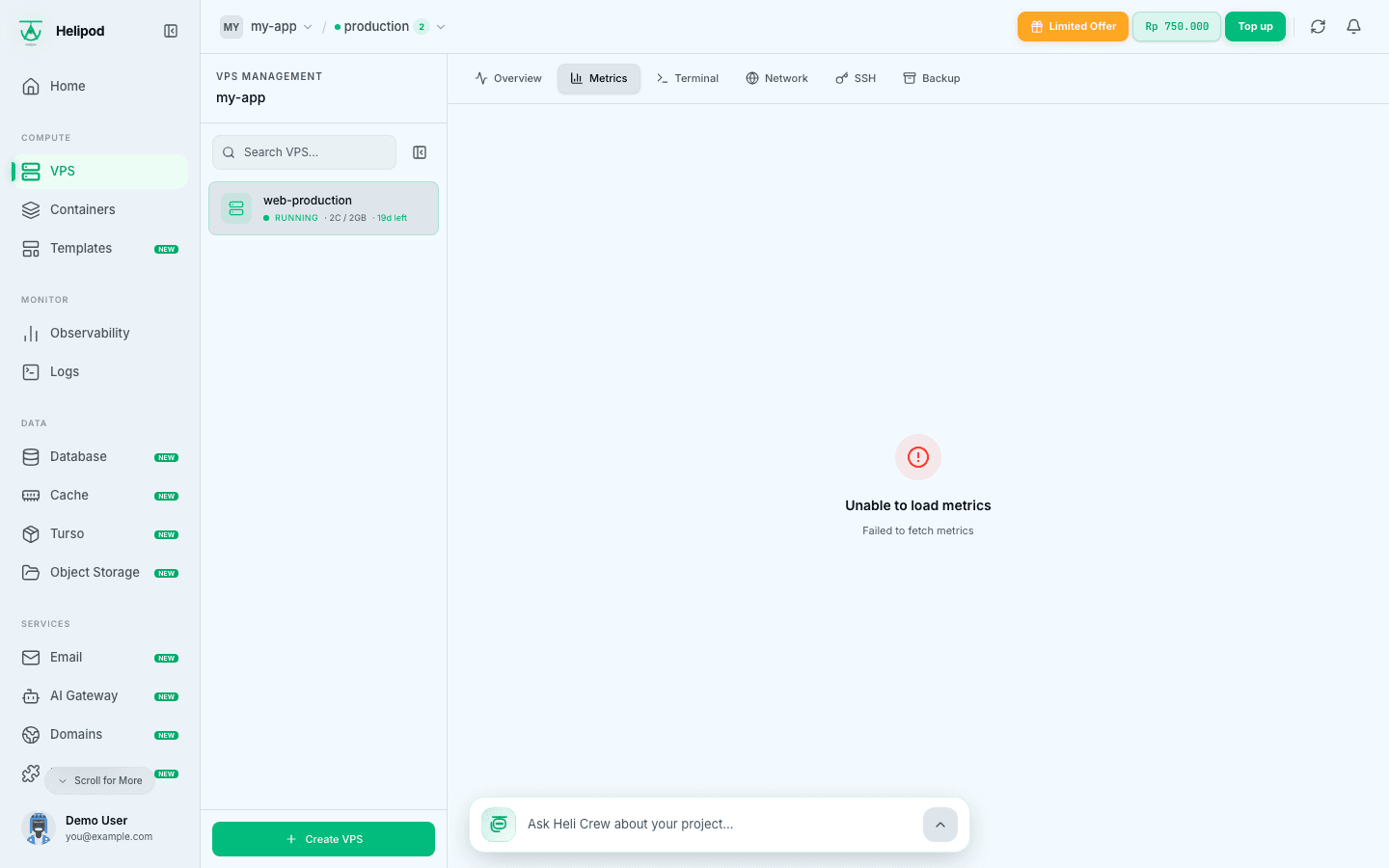
Memory close to 100% for long periods is a sign the plan is too small; see the next section.
Rename
In the Details card, click the edit button next to Name. Use 3 to 50 lowercase letters, numbers and hyphens. The name is a label only; the server's hostname does not change.
Stopped by Helipod
Helipod may stop a VPS that overloads the machine it runs on, for example when it keeps running out of memory and affects other servers. You then see a Stopped by Helipod banner on the Overview tab with the reason, and you receive an email about it.
- Usually you can Start it again at any time. Your data is kept.
- Sometimes it is held stopped until a set time. The banner shows You can start it again after that time; contact support if you need it sooner.
The usual fix is more RAM: Upgrade to a bigger plan, or reduce what runs on the server, before you start it again.