Variables and secrets
Give a service its configuration with environment variables, shared variables and secret files.
Configuration that changes between environments (database URLs, API keys, feature flags) belongs in variables, not in your code. Each service has its own Variables tab for environment variables and a Secrets tab for whole files, and each project can hold shared variables that several services use.
Changes apply on the next deploy
Variables and secret files are saved right away, but a running service keeps the values it started with. Click Deploy on the Deployments tab to start using the new values.
Environment variables
Open the Variables tab
On the Containers page, click the service and open Variables. Variables are encrypted at rest and injected into the container when it starts. They are also available during the build, but never written into the image.
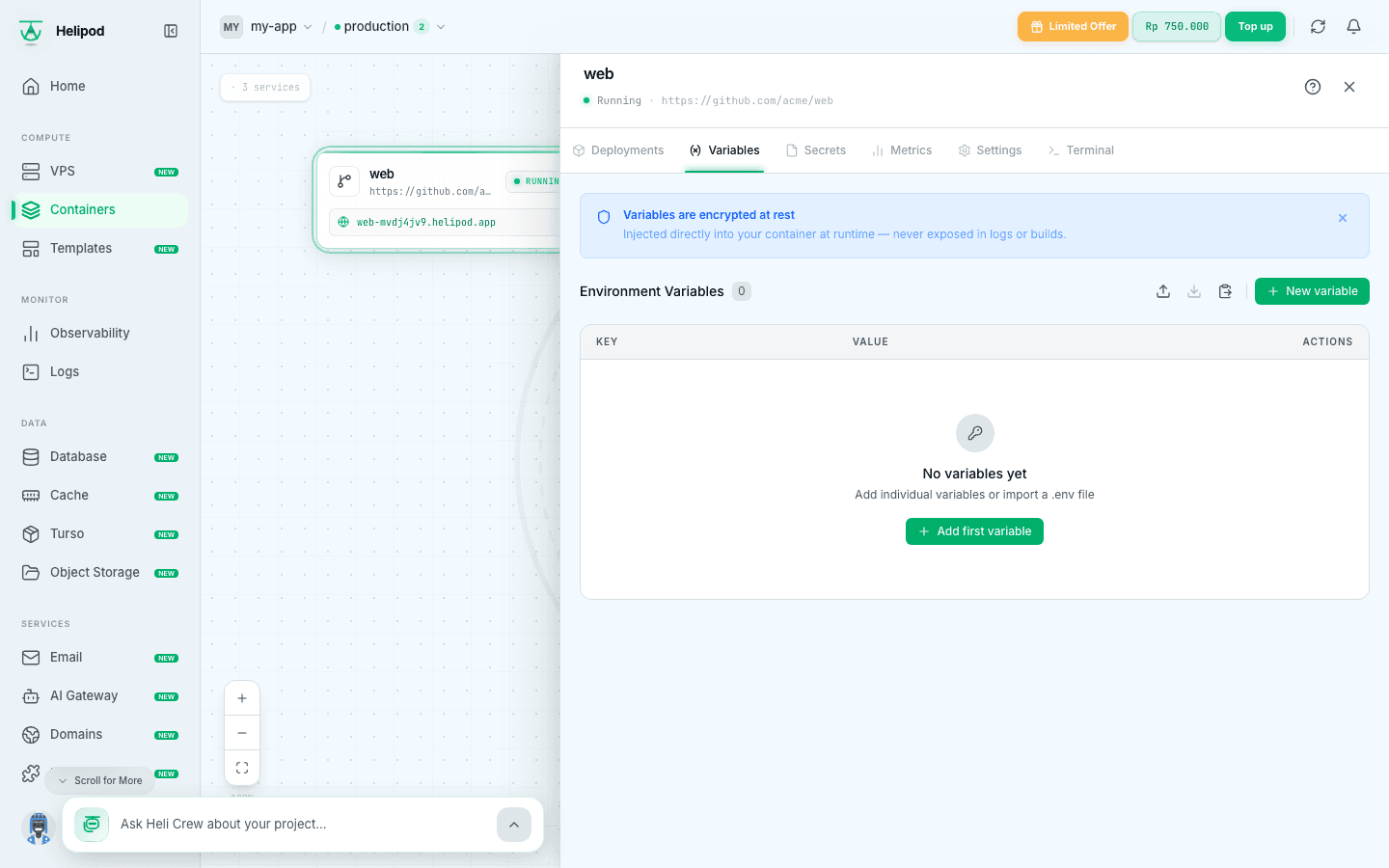
Add a variable
Click New variable, type the name (KEY_NAME, letters, numbers and _ only) and the value, and click Save.
To make it a secret, click the eye icon next to the value before you save. A secret value can never be shown again in the dashboard, not even to you; you can only replace it. Use this for passwords, tokens and keys.
Paste or import a .env file
Click the bulk paste icon and paste the contents of a .env file:
NODE_ENV=production
DATABASE_URL=postgresql://app:password@host/db?sslmode=require
STRIPE_KEY=sk_live_xxxx
The form shows how many variables it found and skips lines with invalid names. Click Import N variables. You can also use the import icon to upload a .env file, and the export icon to download the service's variables as a .env file.
Edit, copy or delete
Each row has buttons to reveal (non-secret values only), copy, edit and delete. Use Search variables... to find a variable in a long list.
Helipod also sets a few variables for you, such as PORT (the app port), HELIPOD_PRIVATE_DOMAIN (the service's internal host) and, once the service has one, HELIPOD_PUBLIC_DOMAIN.
Reference other services
A value can point at another service's variable with ${{ServiceName.KEY}}. The reference is filled in on every deploy, so it follows changes:
API_URL=http://${{api.HELIPOD_PRIVATE_DOMAIN}}:8080
REDIS_URL=${{cache.REDIS_URL}}
See Variables API for every reference.
Shared variables
Values that several services need, such as a Sentry DSN or a support email, can be set once per project. Go to Settings › Shared Variables (shown as Variables in the settings menu). The page works like the Variables tab: add, bulk paste, import and export .env, and mark values as secret.
A service uses a shared variable through a reference in its own Variables tab:
SENTRY_DSN=${{shared.SENTRY_DSN}}Because each service decides which shared values it reads, a service can use its own value instead by setting the variable directly. A change to a shared variable reaches a service the next time that service is deployed.
Secret files
Some tools want a file rather than a variable, for example a Firebase or Google service account JSON. Upload it in the Secrets tab and Helipod mounts it inside the container.
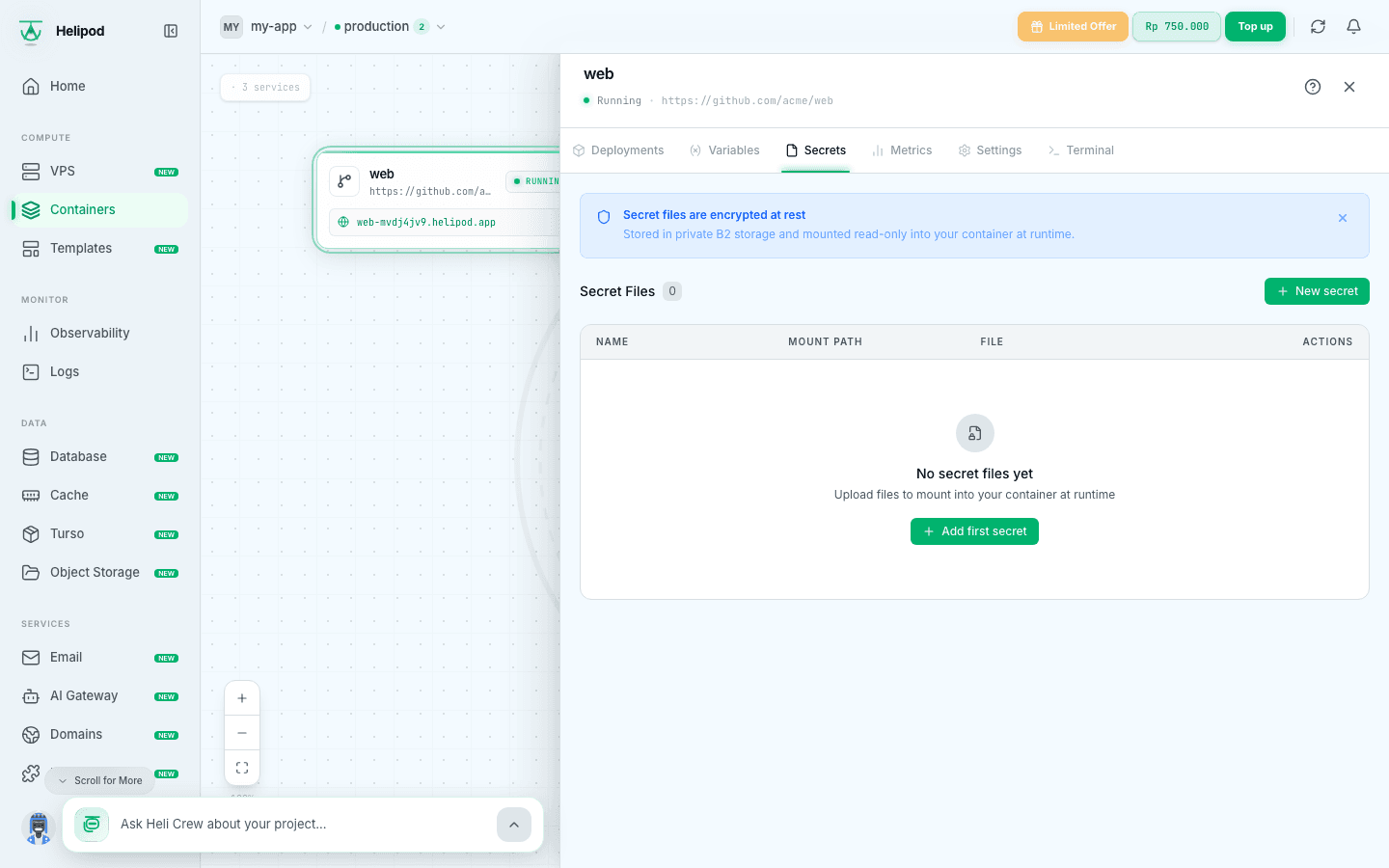
Fill in the form
- Name: a label for you, for example
firebase-credentials. - Mount Path: the full path of the file inside the container, for example
/app/secrets/config.json. Required. - Secret File: drop the file or click browse. Any file type, up to 10 MB. Required.
- Secret / Not secret: a secret file can't be downloaded from the dashboard. Switch to Not secret if you want a download button later.
Click Add secret.
Read it in your app
Deploy the service. The file is mounted read-only at the path you chose:
const config = JSON.parse(require("node:fs").readFileSync("/app/secrets/config.json", "utf8"));Secret files are encrypted at rest. They are also available during the build and removed afterwards. To replace a file, click edit on its row and upload a new one.
Connect to a database
Store the connection string as a secret variable named DATABASE_URL, then read it in your code. For Helipod's managed PostgreSQL, copy the string from the Database page (use the one for the same environment), see Database.
import pg from "pg";

export const pool = new pg.Pool({ connectionString: process.env.DATABASE_URL });

const { rows } = await pool.query("select now()");
console.log(rows[0]);