Create and publish a template
Turn a stack into a template anyone can deploy in one click, share it with a link, or list it in the marketplace.
A template packs one or more services (images or repositories, ports, variables, volumes, resources) into something anyone can deploy in one click, with fresh passwords for every deploy. This guide builds a real one: Directus CMS with its own PostgreSQL database, and publishes it.
To deploy a template that already exists, see Deploy a template.
1. Start a template
Open the builder
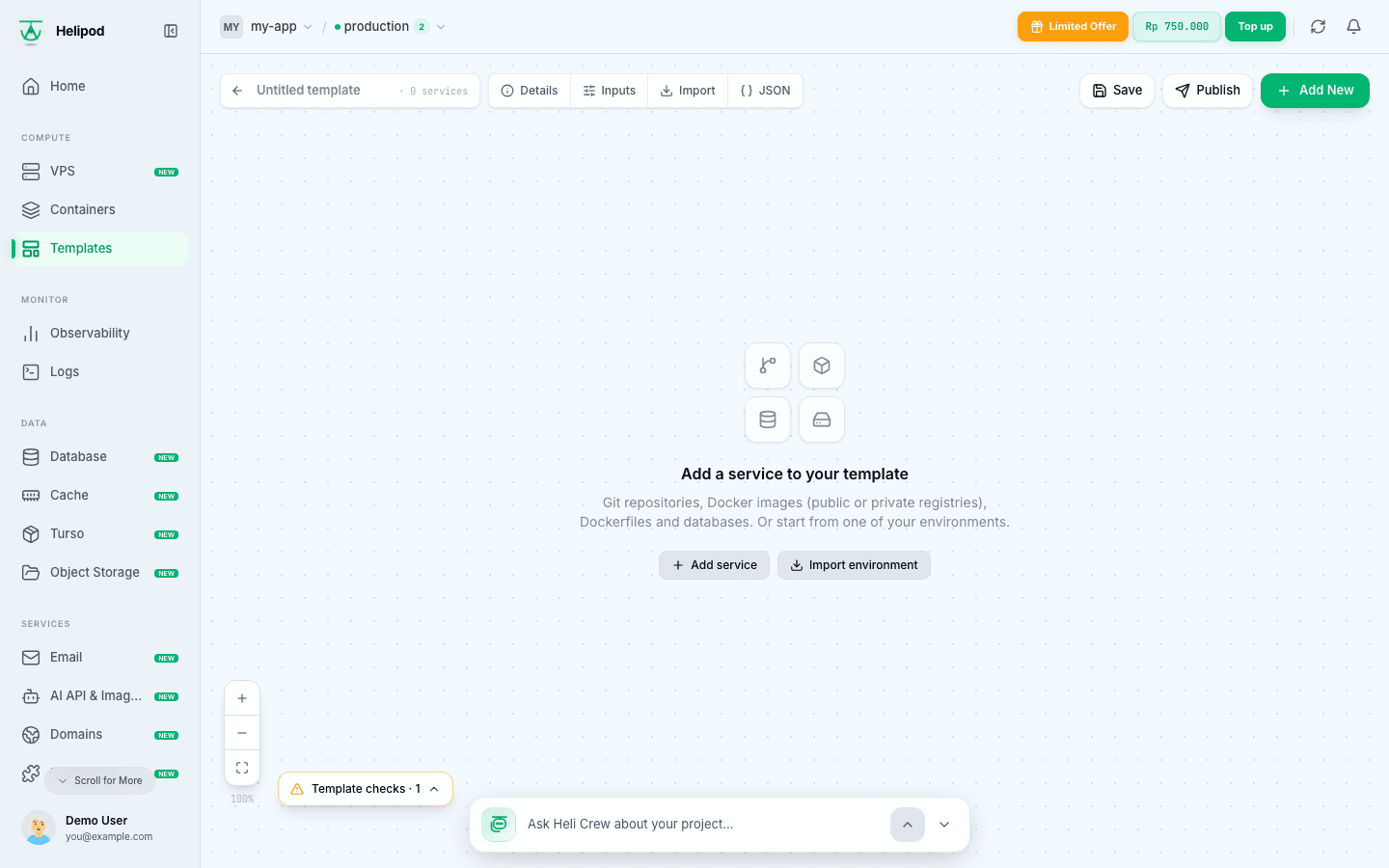
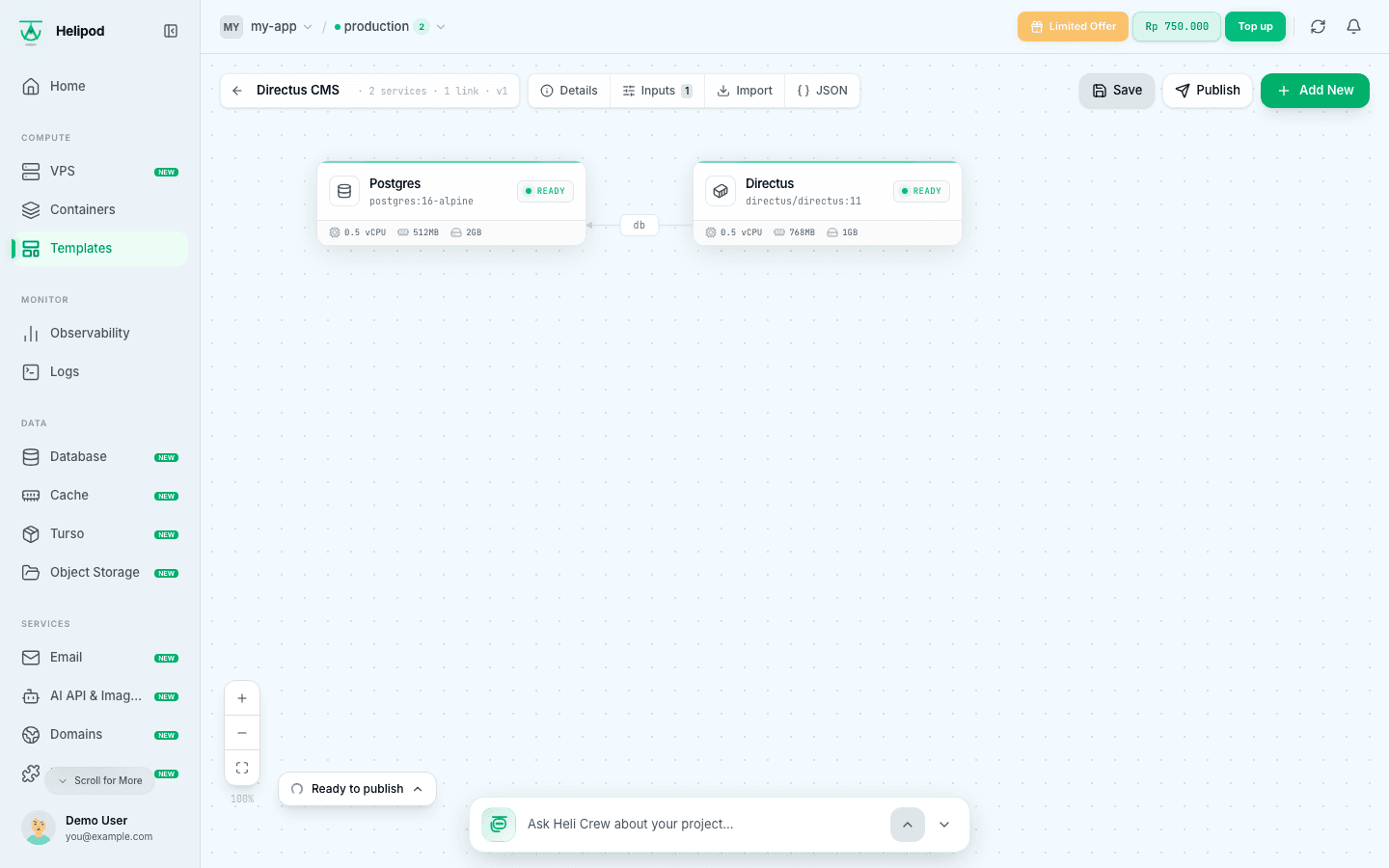
In your project, click Templates in the sidebar, then Create template at the top right. The builder opens: a canvas like the Containers page, with tools at the top:
- the template name (click Untitled template to type one),
- Details, Inputs, Import and JSON,
- Save, Publish and Add New at the top right.
Add services
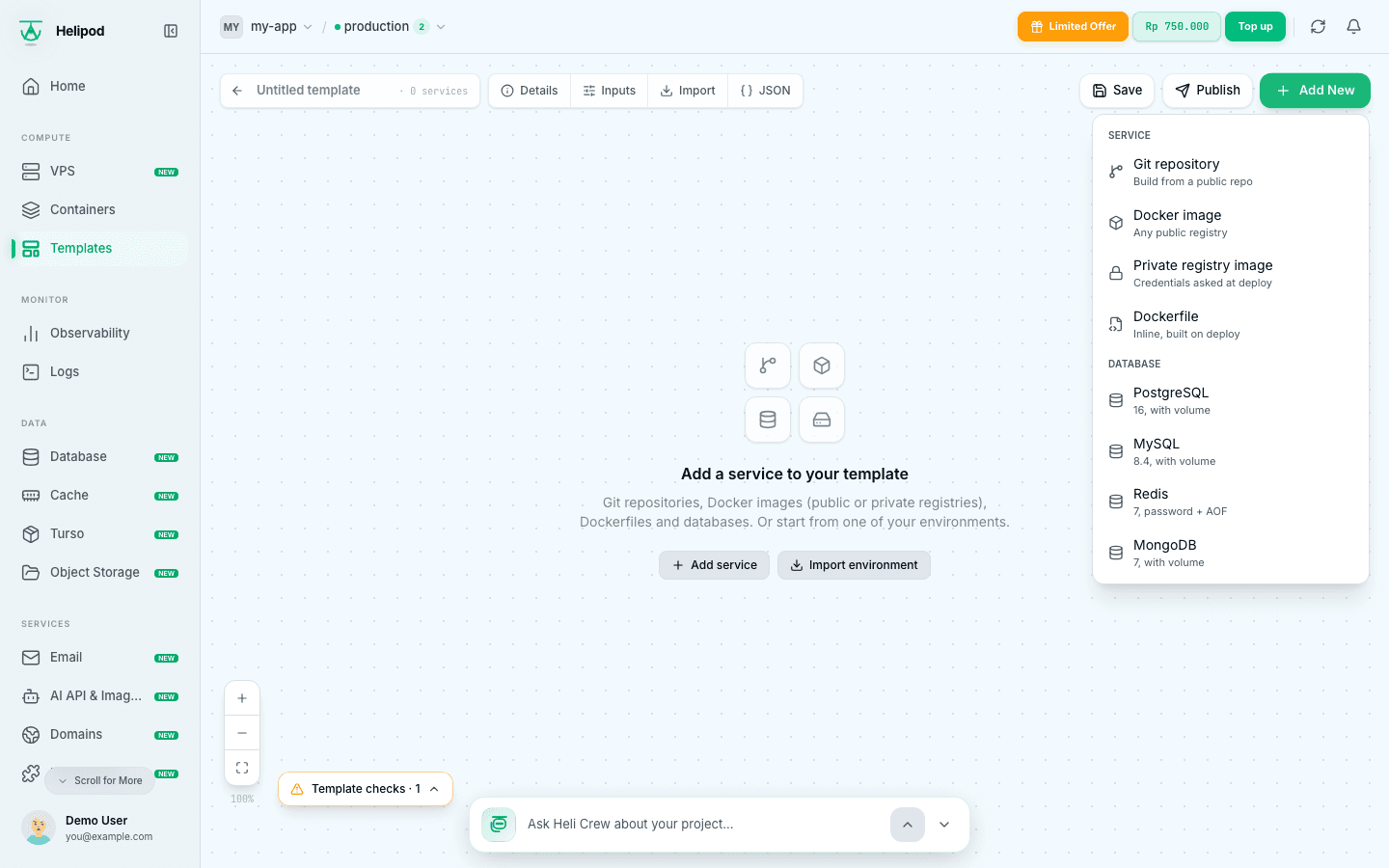
Click Add New (or Add service in the middle of the canvas) and pick what to add:
- Git repository: a public https repository (GitHub, GitLab, Codeberg...), built on every deploy.
- Docker image: an image from Docker Hub, GHCR, Quay or any public registry. Deploys without building.
- Private registry image: an image from a private registry. Whoever deploys the template enters their own registry username and token; they are never stored in the template.
- Dockerfile: an inline Dockerfile, built on deploy.
- PostgreSQL, MySQL, Redis, MongoDB: a ready-made database with a generated password, a connection URL variable and (except Redis) a volume.
A template holds up to 10 services.
Start from what you already run
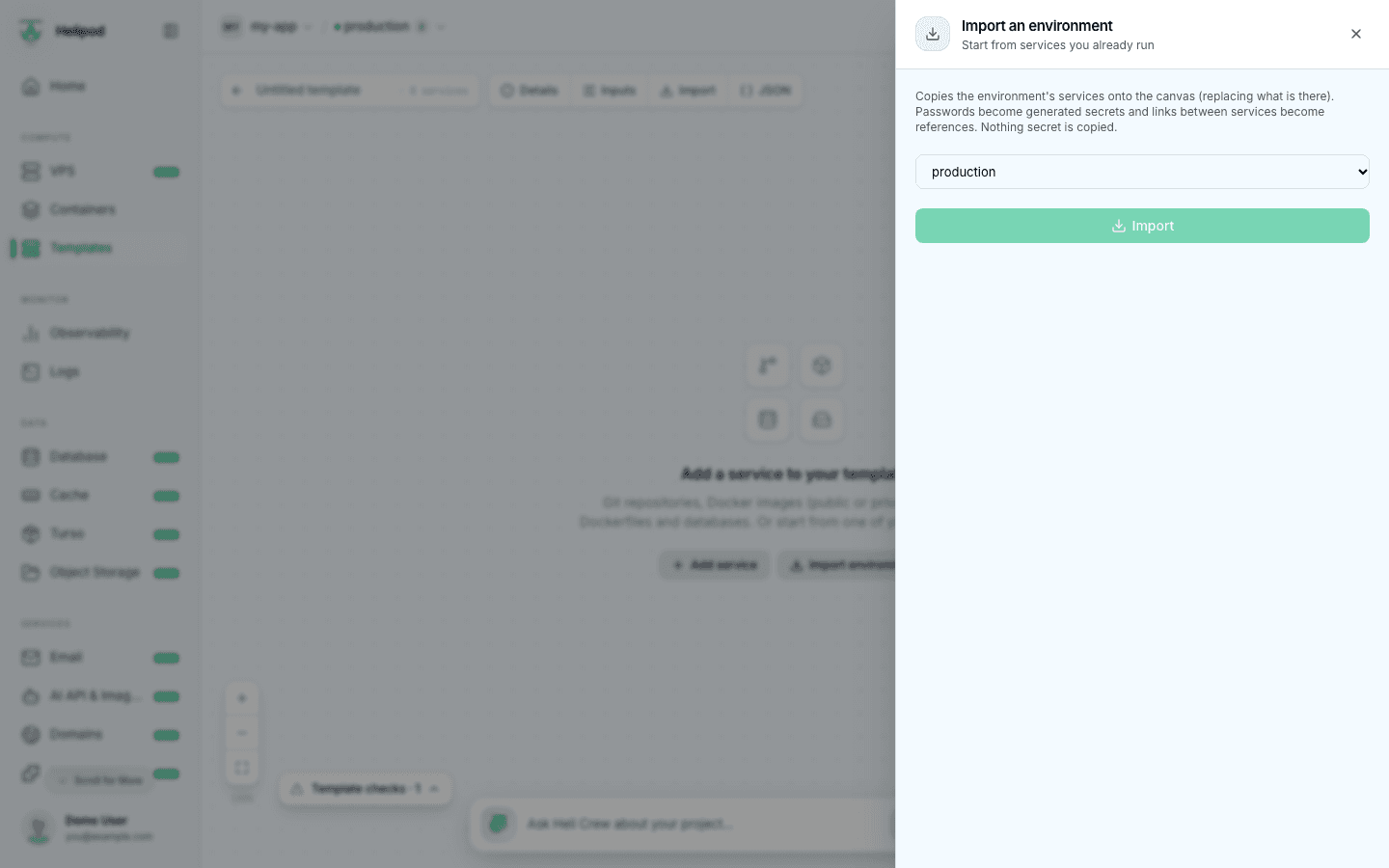
Import copies the services of one of your environments onto the canvas (replacing what is there). Passwords become generated secrets, links between services become references, and nothing secret is copied. Custom domains are not copied: each service gets a *.helipod.app domain. A service built from a private repository is copied with a warning: it must be public for other people to deploy it.
2. Set up each service
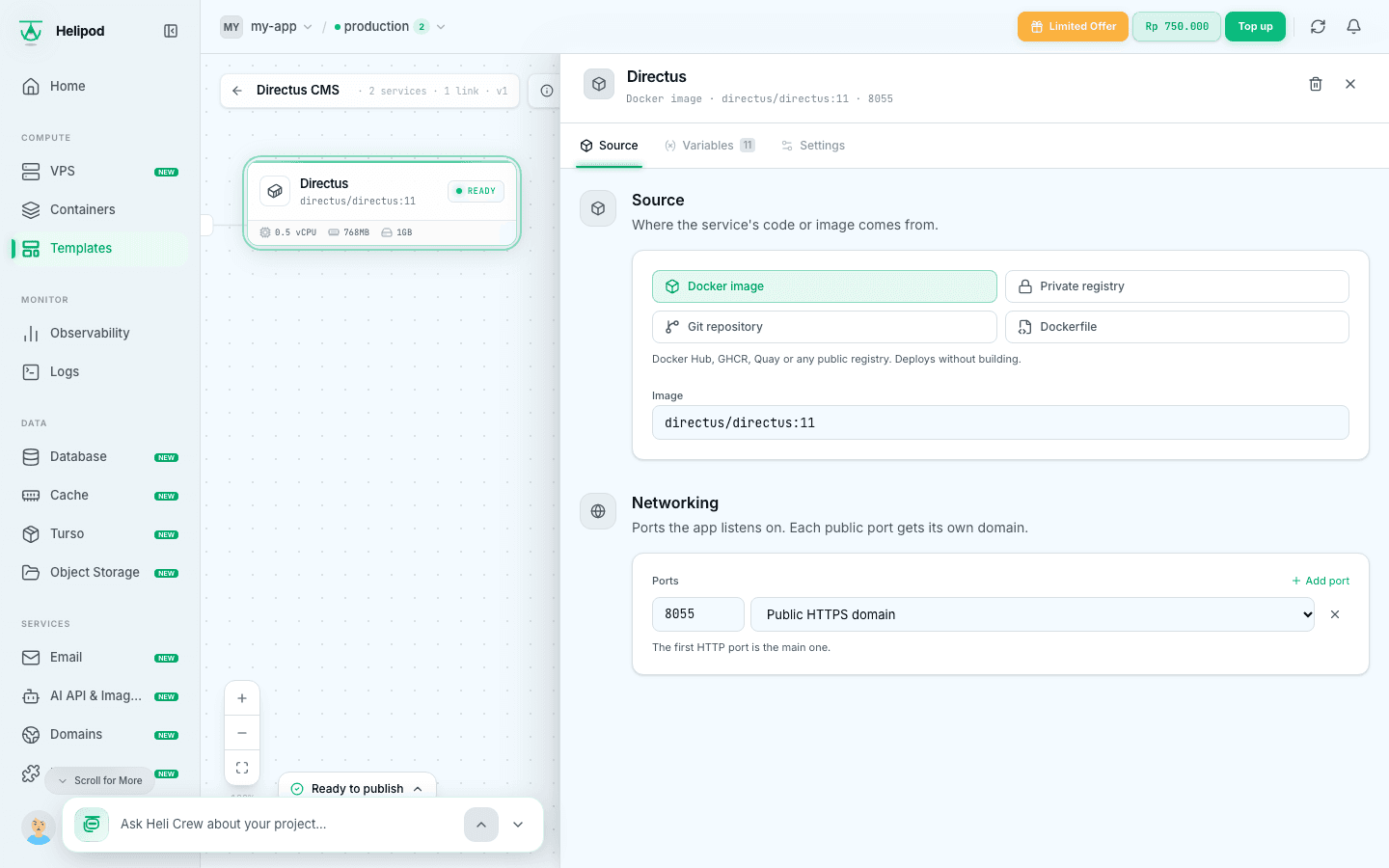
Click a service on the canvas to open its panel. It has three tabs: Source, Variables and Settings. To rename the service, click its name at the top of the panel; references to it in other services are updated for you. The trash icon removes the service after asking, and names the services whose references to it would stop working.
Source and networking
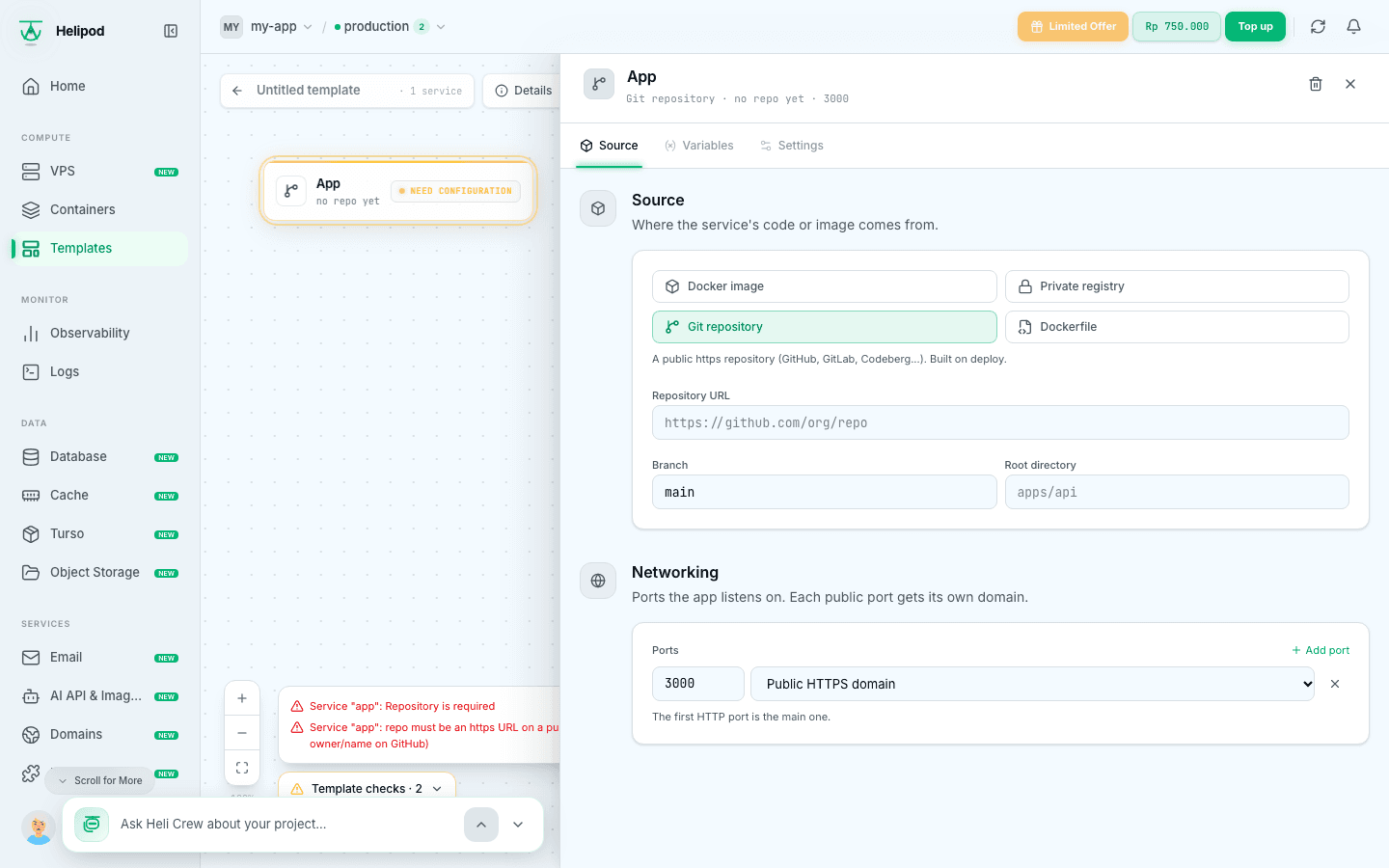
On Source, choose the source type and fill in the image (for example directus/directus:11), or the repository URL, branch and root directory, or the Dockerfile.
Under Networking, list the ports the app listens on (up to 5) and how each one is reached:
- Public HTTPS domain: gets its own
*.helipod.appdomain with HTTPS. The first HTTP port is the main one. - Private (other services only): reachable only by the other services of the deploy. Use it for databases.
- Public TCP (TLS/SNI): a public TCP port.
A service without ports is a background worker.
Variables: no real passwords
On Variables, add the environment variables the service needs (Add variable, or paste a whole .env file). Never put a real password or key in a template: whoever deploys it would share it. Use references instead; they are filled in on every deploy:
| Reference | Becomes |
|---|---|
${{secret(32)}} | A new random 32-character secret for every deploy |
${{uuid}} | A new random UUID |
${{input.ADMIN_EMAIL}} | What the person deploying typed for the input ADMIN_EMAIL |
${{Postgres.POSTGRES_PASSWORD}} | The variable POSTGRES_PASSWORD of the service named Postgres |
${{Postgres.HELIPOD_PRIVATE_DOMAIN}} | The private host of the service Postgres |
${{HELIPOD_PUBLIC_DOMAIN}} | This service's own public domain |
Generated values are shown in amber, links to other services in violet. The Directus service of the example links to the database like this:
KEY=${{secret(32)}}
SECRET=${{secret(32)}}
ADMIN_EMAIL=${{input.ADMIN_EMAIL}}
DB_CLIENT=pg
DB_HOST=${{Postgres.HELIPOD_PRIVATE_DOMAIN}}
DB_PORT=5432
DB_DATABASE=${{Postgres.POSTGRES_DB}}
DB_USER=${{Postgres.POSTGRES_USER}}
DB_PASSWORD=${{Postgres.POSTGRES_PASSWORD}}
PUBLIC_URL=https://${{HELIPOD_PUBLIC_DOMAIN}}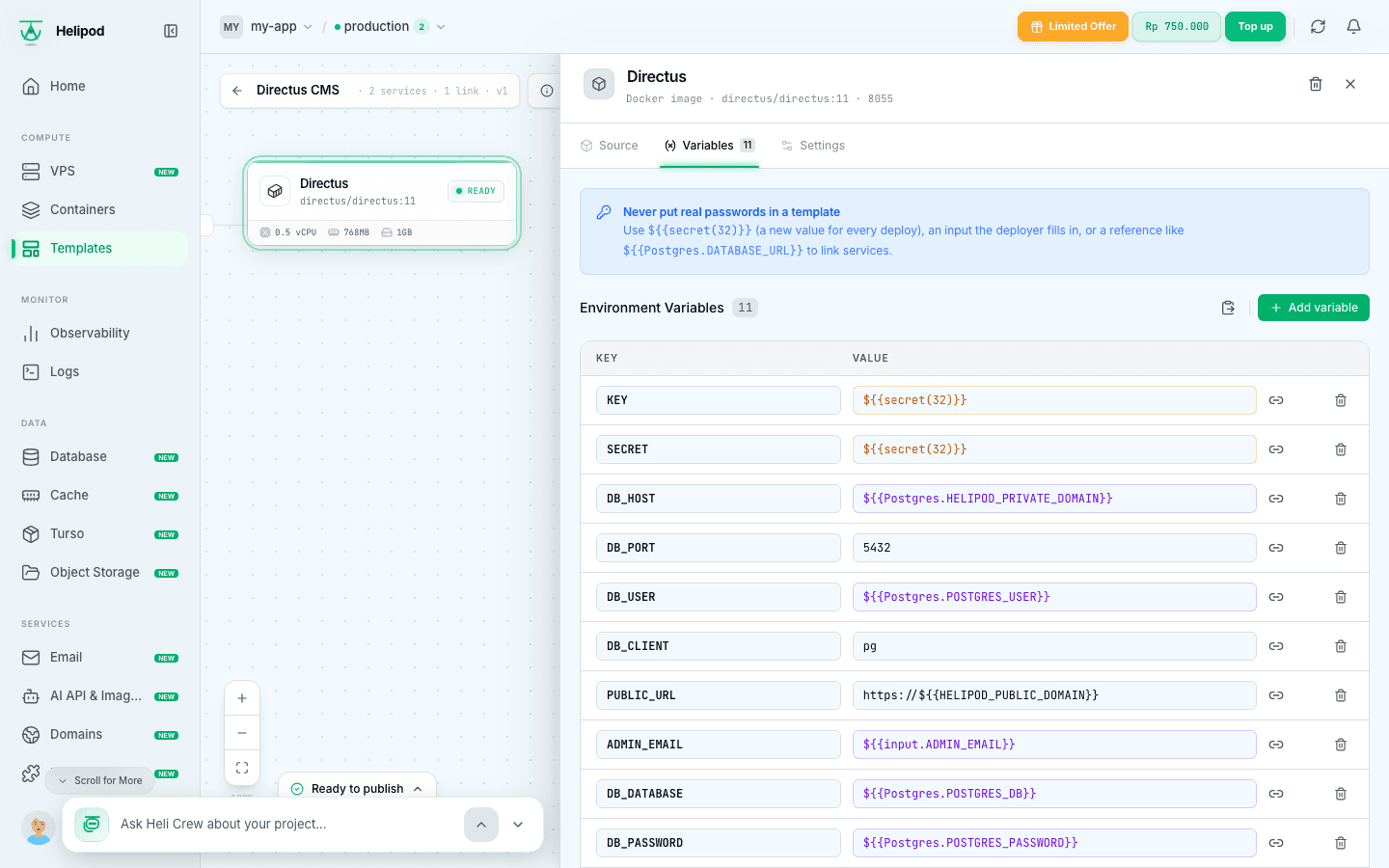
You don't have to type references: click the link icon next to a value and pick a generated value, this service's domain or host, an input, or a variable of another service.
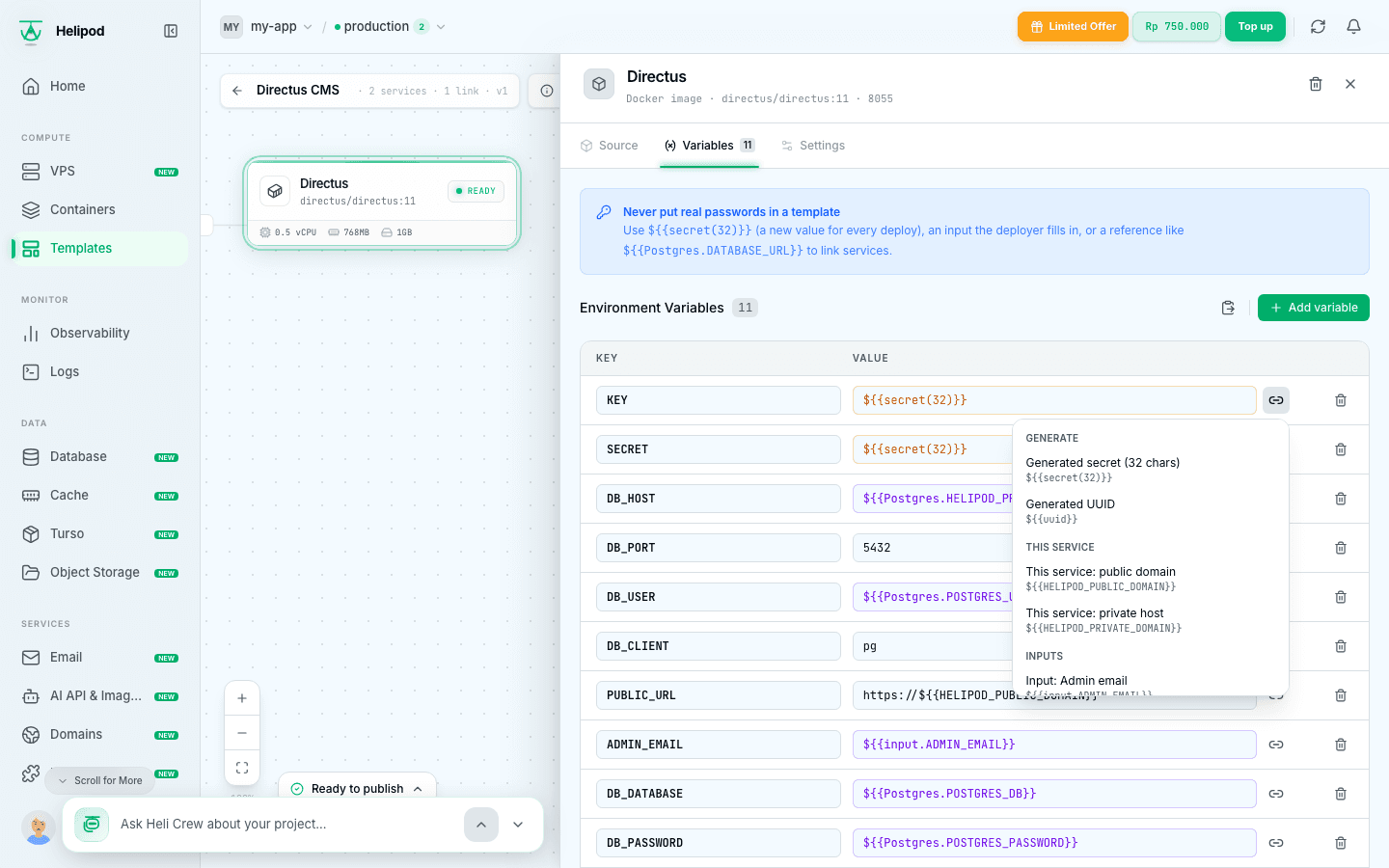
A service that uses another service's variable starts after it: Directus waits for Postgres. The canvas draws that link between the two.
Resources, volumes and start-up
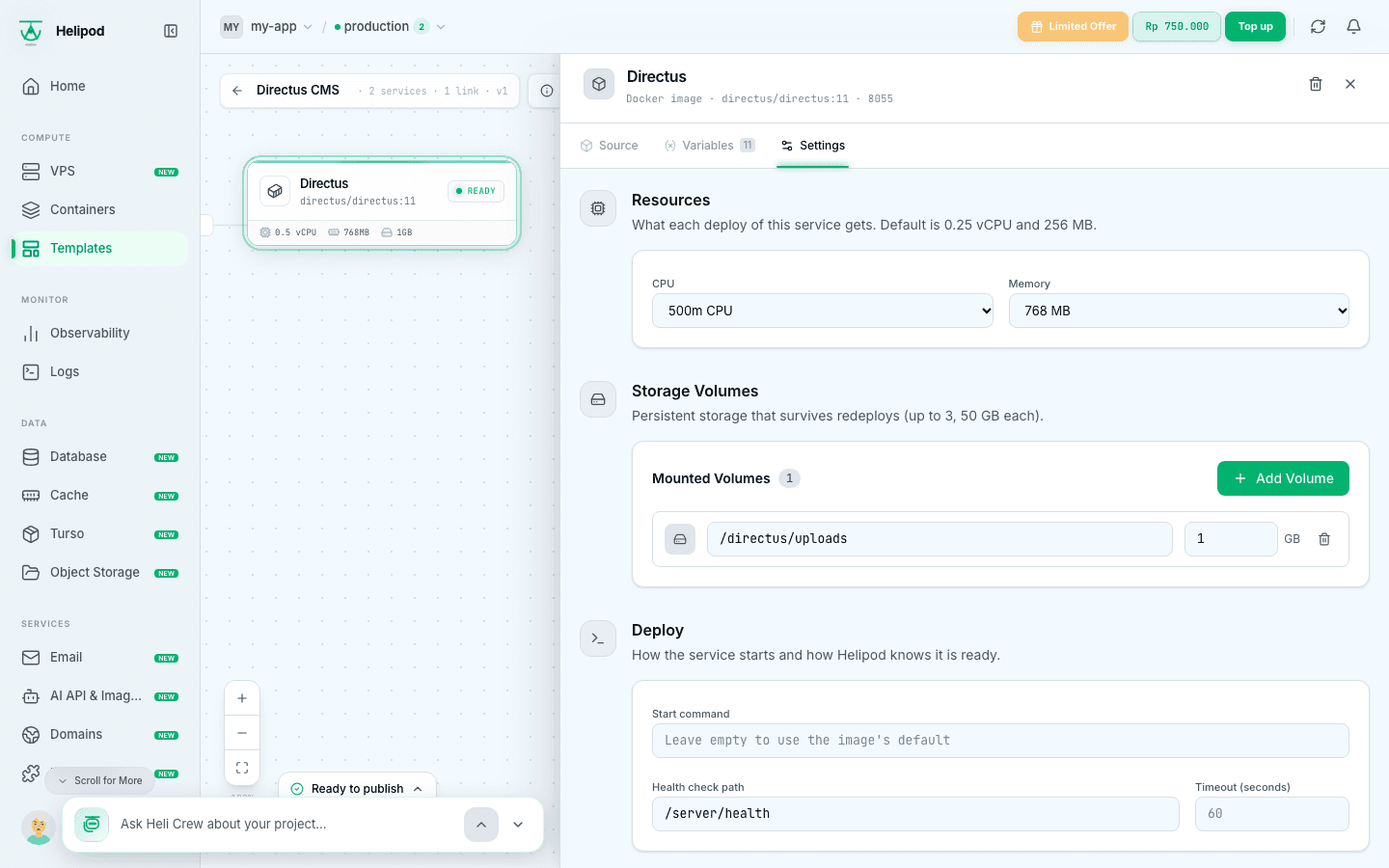
On Settings:
- Resources: the CPU and memory every deploy of this service gets (default 0.25 vCPU and 256 MB, up to 4 vCPU and 8 GB).
- Storage Volumes: persistent storage that survives redeploys, up to 3 per service and 50 GB each. Without a volume, data is lost when the service redeploys, so databases and uploads need one.
- Deploy: an optional start command (leave it empty to use the image's own), and a health check path such as
/server/healthwith its timeout.
3. Ask the person deploying
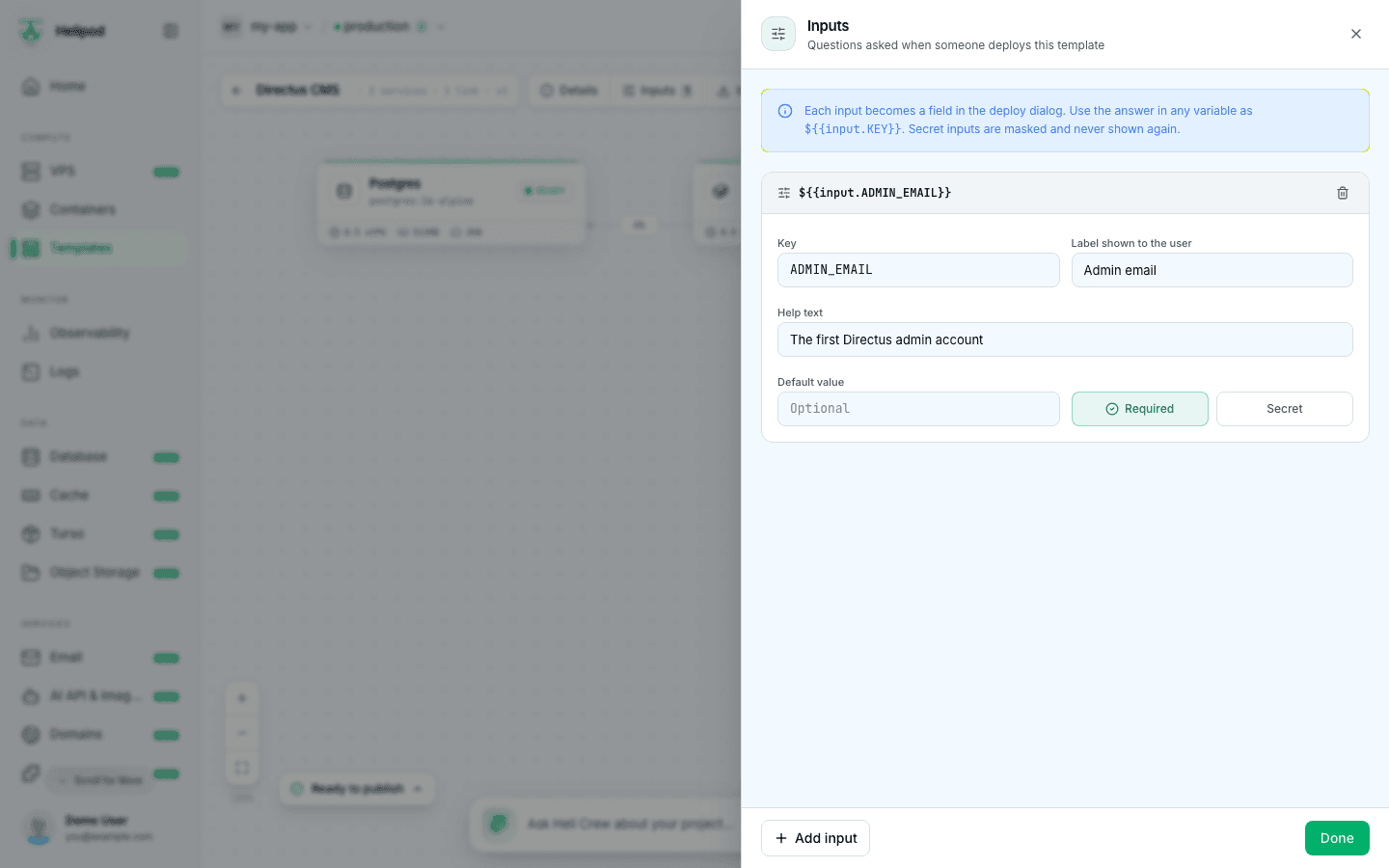
Click Inputs to add the questions shown in the deploy dialog. Each input becomes a field there, and its answer is used in any variable as ${{input.KEY}}. For each input, set:
- Key: upper case, for example
ADMIN_EMAIL. - Label shown to the user and an optional Help text.
- Default value (optional).
- Required: the deploy cannot start without it.
- Secret: the field is masked and the value is never shown again. Secret inputs have no default.
With no inputs, the template deploys without asking anything. A template has up to 20 inputs. With no inputs yet, you can start from a common one: Admin email, API key (secret), Timezone or App name.
4. Describe it
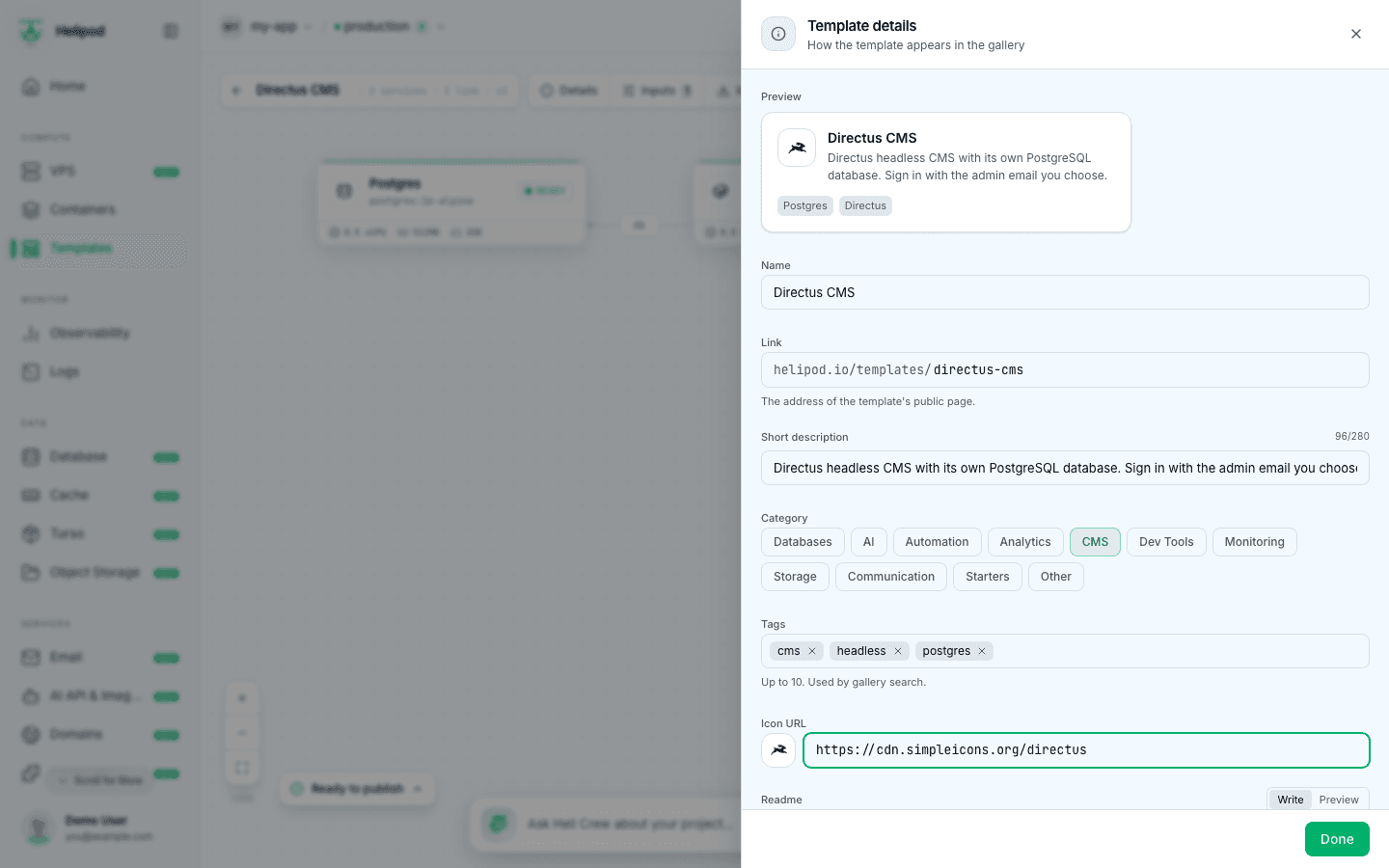
Click Details to set how the template appears in the gallery and on its public page. The Preview at the top updates as you type.
- Name: the template's name (also editable in the top bar).
- Link: the address of its public page,
helipod.io/templates/<link>. Leave it empty on a new template to make it from the name. A link already used by another template is refused. - Short description: one sentence on what someone gets (up to 280 characters).
- Category: Databases, AI, Automation, Analytics, CMS, Dev Tools, Monitoring, Storage, Communication, Starters or Other.
- Tags: up to 10, used by the gallery search. Press Enter after each.
- Icon URL: an https image, for example
https://cdn.simpleicons.org/directus. - Readme: Markdown shown on the template page before deploying. Explain what the stack does and what to do after the deploy (where to sign in, which password to look up).
When you edit a template later, Details also has What changed in this version.
5. Check and save
The chip at the bottom left checks the template as you work. Template checks · N lists what to fix, for example a Git service without a repository URL; it turns into Ready to publish when everything passes.
Click Save. The first save stores the template as a private Draft (version 1). Every later save that changes the services stores a new version (Saved version 2, ...). Saving never changes what other people deploy: only Publish does.
Prefer JSON?
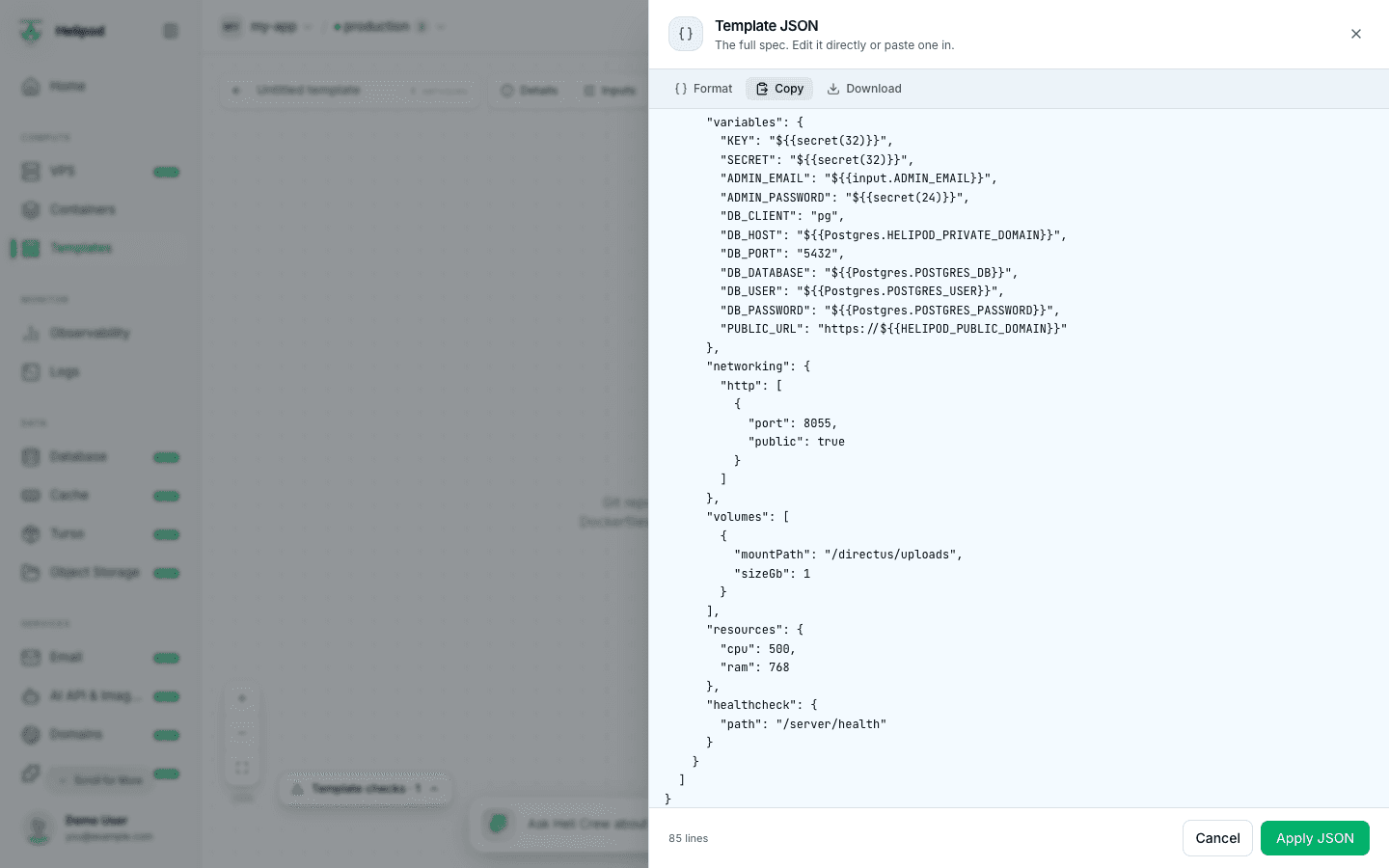
JSON shows the whole template as a spec you can edit, copy, download or replace by pasting your own, then Apply JSON. It is the same format as the Templates and stacks API, so a stack you deploy from code can become a template and the other way round.
6. Publish
Click Publish and choose who can see and deploy the template:
| Choice | Who can deploy | Review |
|---|---|---|
| Private | Only you | None, live at once |
| Unlisted | Anyone with the link | None, live at once |
| Marketplace | Everyone, listed in the gallery | Helipod reviews it first |
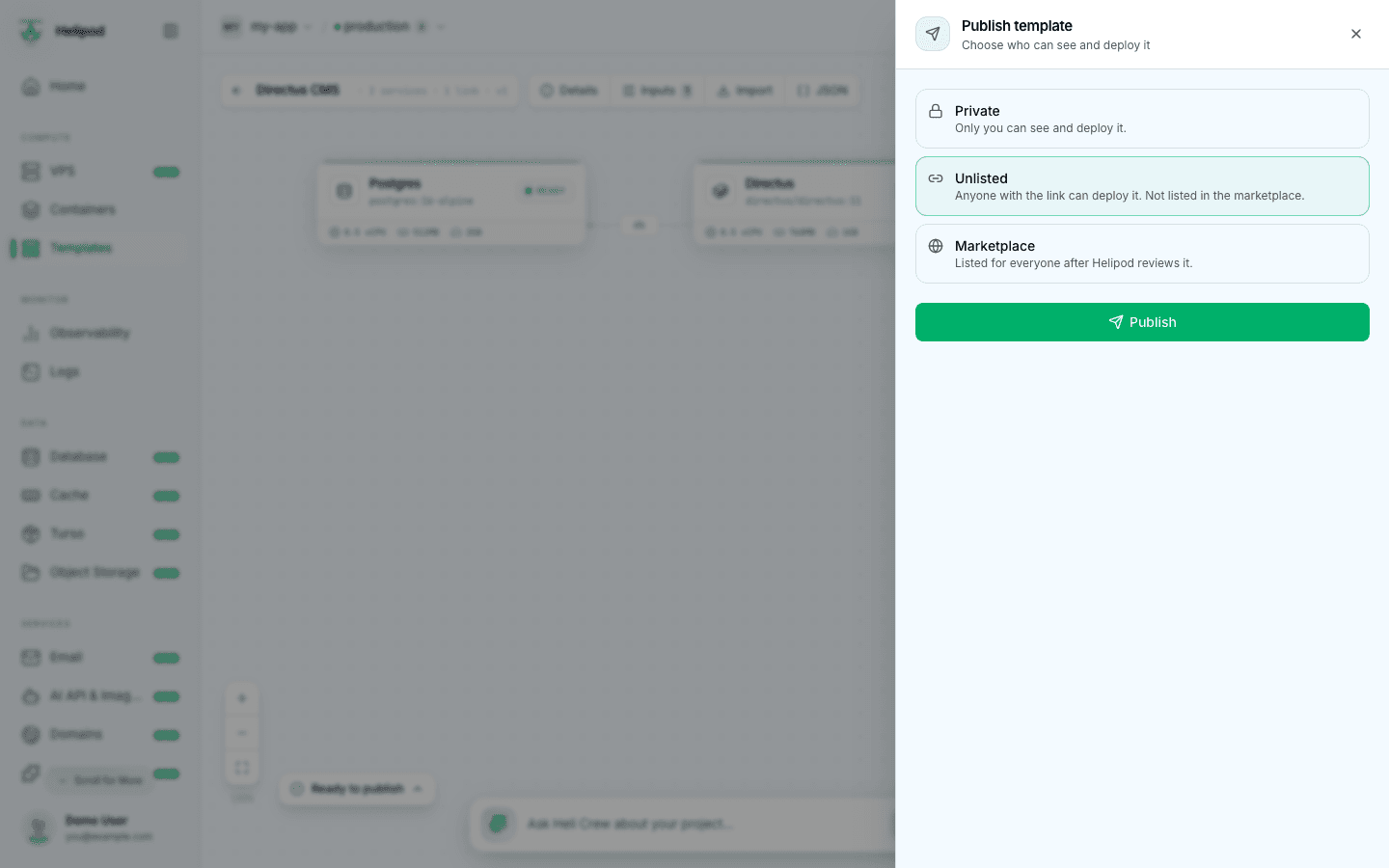
The button reads Publish, or Submit to marketplace for Marketplace. It saves your latest changes first. If something must be fixed first, the dialog lists it under Fix these first. Unlisted and Marketplace templates are checked once more for values that look like real credentials: a variable named like a password, secret, token or key needs ${{secret(32)}} or an input instead of a fixed value.
Marketplace review
A template submitted to the marketplace shows In review until Helipod checks it. If the reviewer asks for changes, it shows Changes requested with the reviewer's note under the template. Fix it, save and publish again. There is no email about the result: check My templates.
Every new version of a marketplace template is reviewed again. Until it is approved, people keep deploying the version that was approved before.
7. Share it
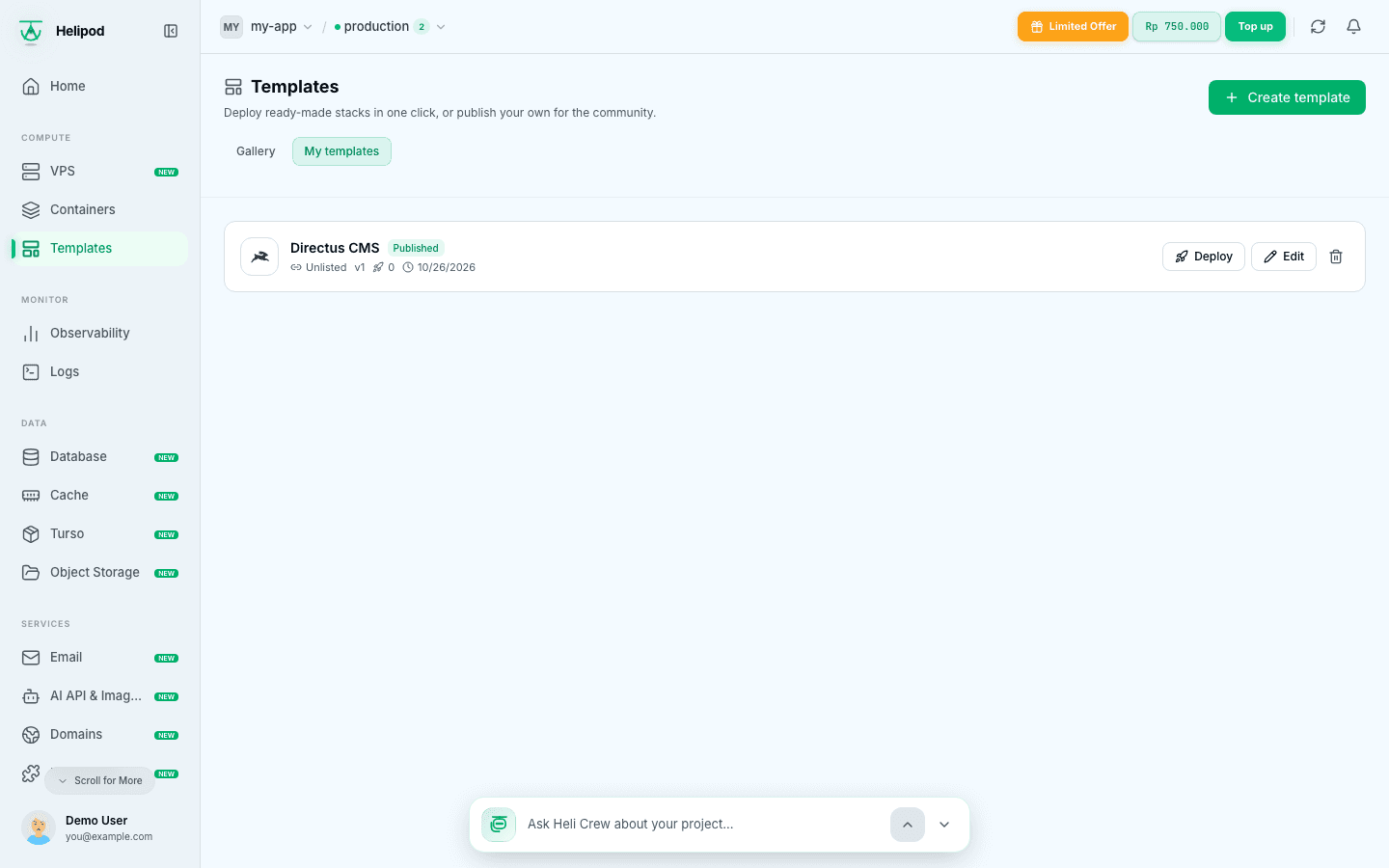
My templates (on the Templates page) lists your templates with their status (Draft, In review, Published or Changes requested), who can see them, the latest version (and the live one when they differ, for example v3 (live: v2)), how often they were deployed and when they changed. Deploy deploys it into your project, Edit opens the builder.
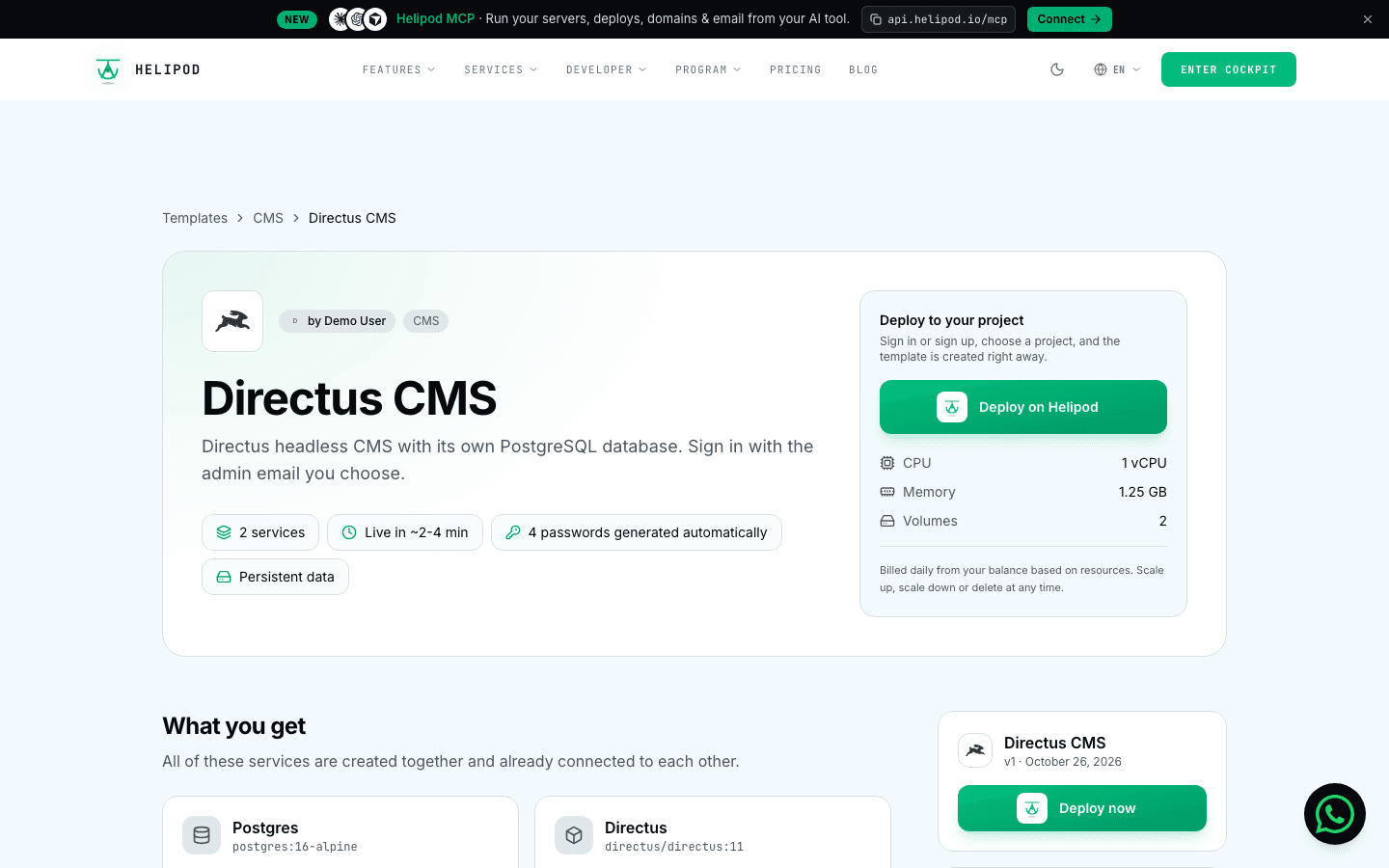
An unlisted or marketplace template has a public page at https://helipod.io/templates/<slug> that anyone can open. Its address is the Link set in Details. You can change it later, but the old address then stops working, so links and Deploy buttons that use it break; Details warns you before you save. The page shows what the stack creates, the resources it uses, your readme and a Deploy on Helipod button. Whoever clicks it signs in (or signs up), picks a project and deploys.
Under Embed the Deploy button, copy the Markdown or HTML for a README or website:
[](https://helipod.io/templates/your-template)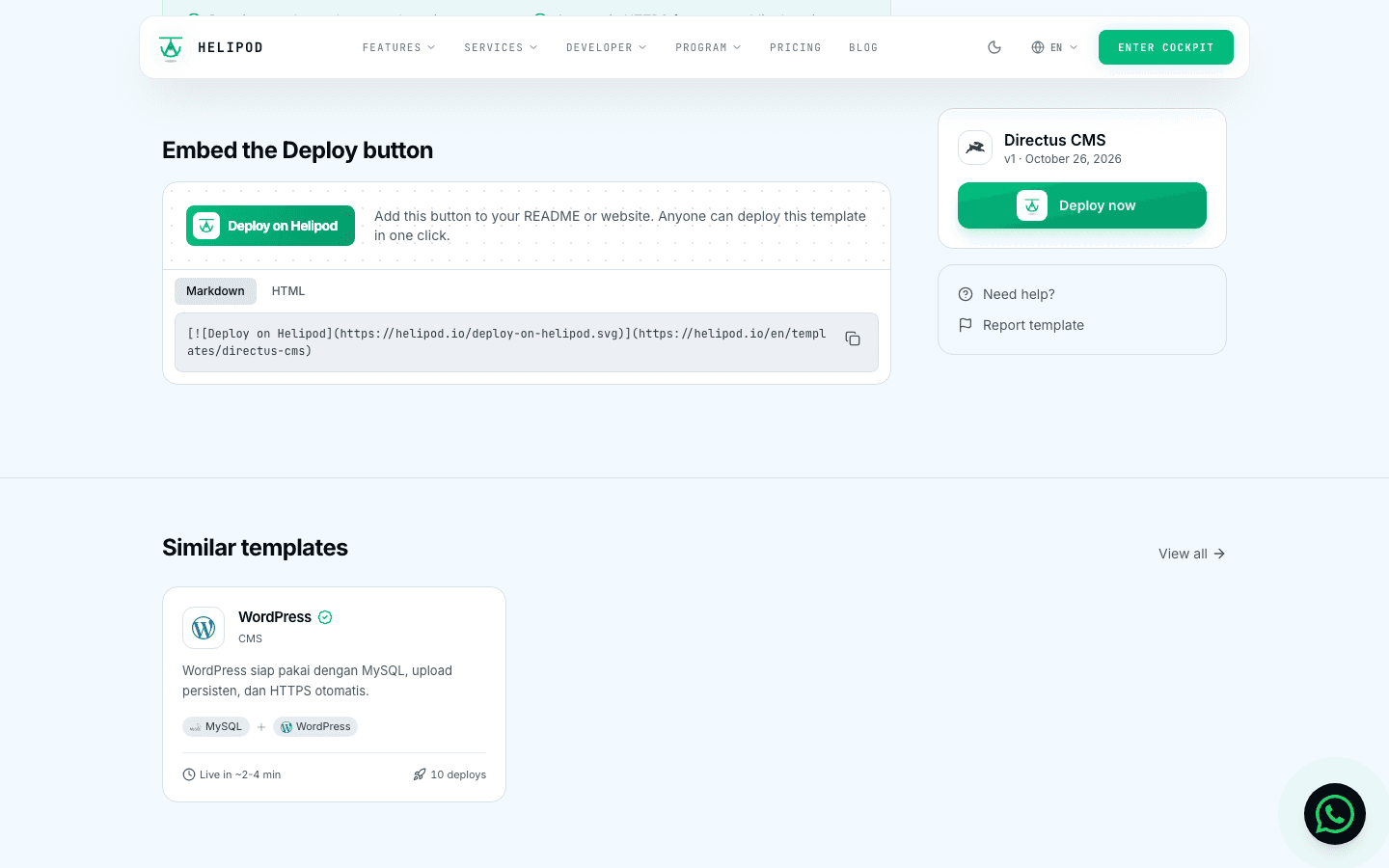
Update or retire a template
- Update: click Edit, change it, Save (a new version) and Publish again. Services already deployed from the template are not changed.
- Retire: click the trash icon next to the template in My templates. The template disappears from the gallery and its page, and can no longer be deployed. Services already deployed from it keep running. This cannot be undone, and the template's link is not freed for another template.